Web Interface Overview
The Taka Web UI is how you drive scans in a Docker deployment. It runs on port 7331 inside the container and is published on the host port set by TAKA_PORT (default 7331).
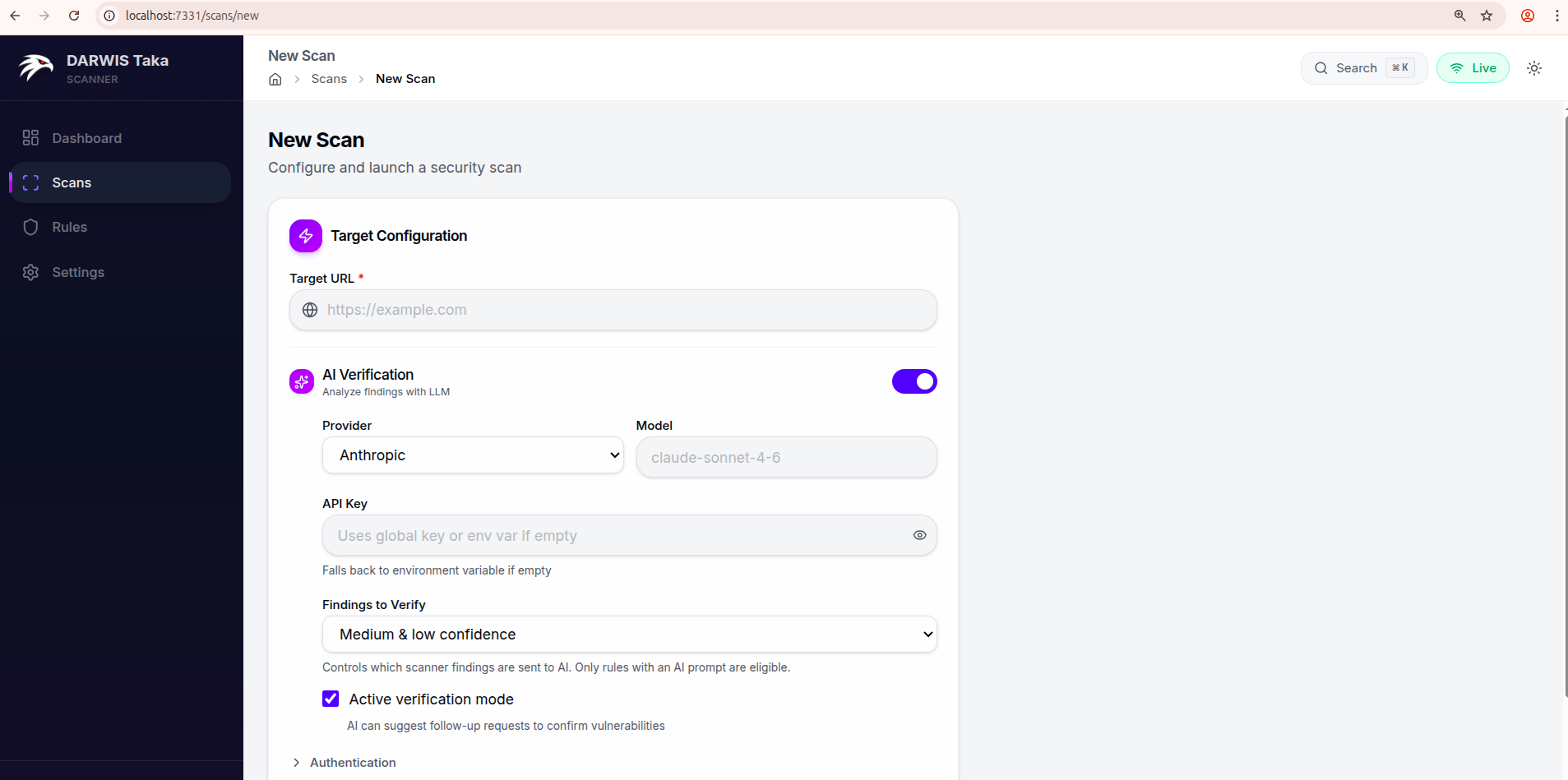
Layout
A persistent sidebar on the left carries four sections:
| Section | Purpose |
|---|---|
| Dashboard | Recent activity and finding counts. |
| Scans | Browse past scans and launch a new one. |
| Rules | Inspect the loaded detection rules. |
| Settings | Global API keys, scan defaults, and AI verification prompts. |
The header shows:
- a Search box that opens a command palette (keyboard shortcut
⌘K/Ctrl+K), searchable over scans, rules, and navigation targets; - a Live indicator driven by the WebSocket connection to the server (green “Live” when connected); and
- a light/dark theme toggle.
Typical flow
- Open Settings once and save an API key for your AI provider if you plan to use AI verification.
- Open Scans → New Scan and fill in a target URL.
- Submit. The scan detail page opens and streams live findings as the engine runs.
- Click any finding to open Finding Details and optionally run AI verification on it.
What’s next
- Settings: save AI provider keys and scan defaults before your first run
- Running a Scan
- Scan Results
- Finding Details