Scan Results
After a scan starts, Taka opens the Scan Detail page and streams updates over a WebSocket as the engine works through the target.
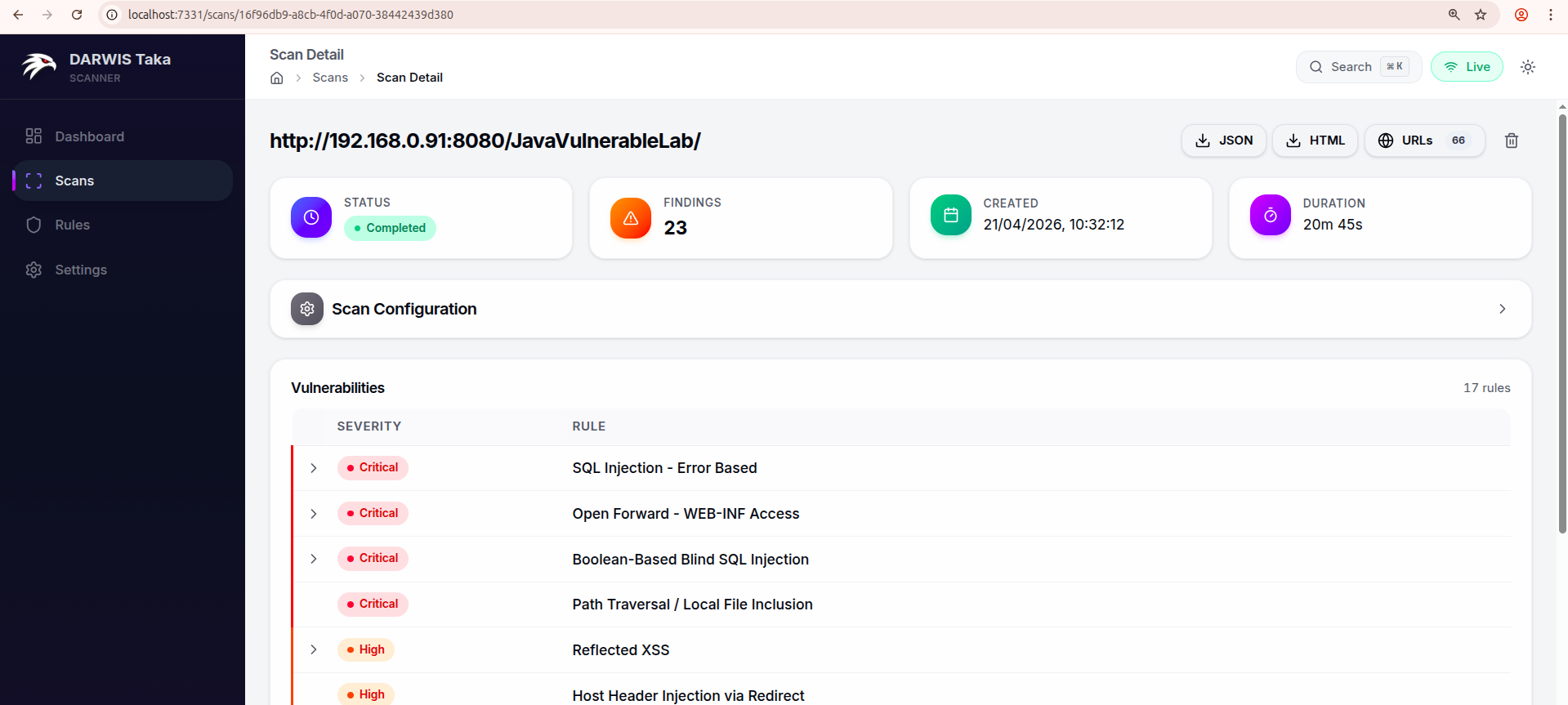
Header summary
The four tiles across the top show the scan’s high-level state:
| Tile | Meaning |
|---|---|
| Status | pending, running, completed, cancelled, or failed. |
| Findings | Number of unique findings so far. |
| Created | Wall-clock time the scan was started. Uses the container’s TZ. See Configuration. |
| Duration | Elapsed time (live while running, final once completed). |
Action buttons
On the right side of the scan title row:
- Cancel (red): visible only while the scan is
running. Stops the scan. - JSON: downloads the full scan result as JSON.
- HTML: downloads a self-contained HTML report.
- URLs (n): visible when the crawler discovered at least one URL. Opens the Crawled URLs page for this scan.
- Delete (trash icon): visible only when the scan is not running. Prompts for confirmation, then removes the scan and all its findings from the database.
Scan Configuration
The collapsible Scan Configuration card replays the options that were set when the scan was created: AI settings (provider, model, mode), rule tags, spider depth and max URLs, and concurrency. If AI verification was enabled, a small “AI Enabled” badge appears in the card header.
Progress (while running)
While the scan is running or pending, a Progress card appears below the configuration. It shows:
- the current phase (Crawling, Scanning, Verifying, etc.) with a stepper;
- a percentage bar; and
- live counters for Tasks, Errors, and Skipped.
The card disappears once the scan reaches completed, cancelled, or failed.
Vulnerabilities list
Findings are presented as a table with one row per rule that matched. Each row shows:
- the severity badge (Critical / High / Medium / Low / Info), with a coloured left border;
- a severity breakdown chip if the rule matched at multiple severities;
- the rule title; and
- either a Deterministic chip (for rules that don’t need AI, where the result is always definitive) or an AI summary indicator showing how many findings for this rule are confirmed, flagged as likely false positive, pending, or inconclusive.
If a rule matched on exactly one endpoint, clicking the row opens Finding Details directly. If it matched on multiple endpoints, clicking expands the row in place and shows a list of matching URLs (with parameter names); clicking any URL opens its Finding Detail page.
A counter in the top-right of the card (17 rules in the screenshot) shows how many distinct rules produced findings, not the total count. One rule can match many URL/parameter combinations.
Live updates
Live updates are driven by a WebSocket subscription to the scan. The scan metadata also refetches every three seconds while running or pending, so transient WebSocket drops don’t stall the UI. When the scan transitions to a terminal state, the vulnerability summary is re-fetched once to pick up any final counts.
If you put Taka behind a reverse proxy, make sure WebSocket upgrades are forwarded; otherwise live findings won’t stream (polling still updates the header tiles and summary).