Finding Details
Clicking a vulnerability row on the scan detail page opens the Finding Detail view.
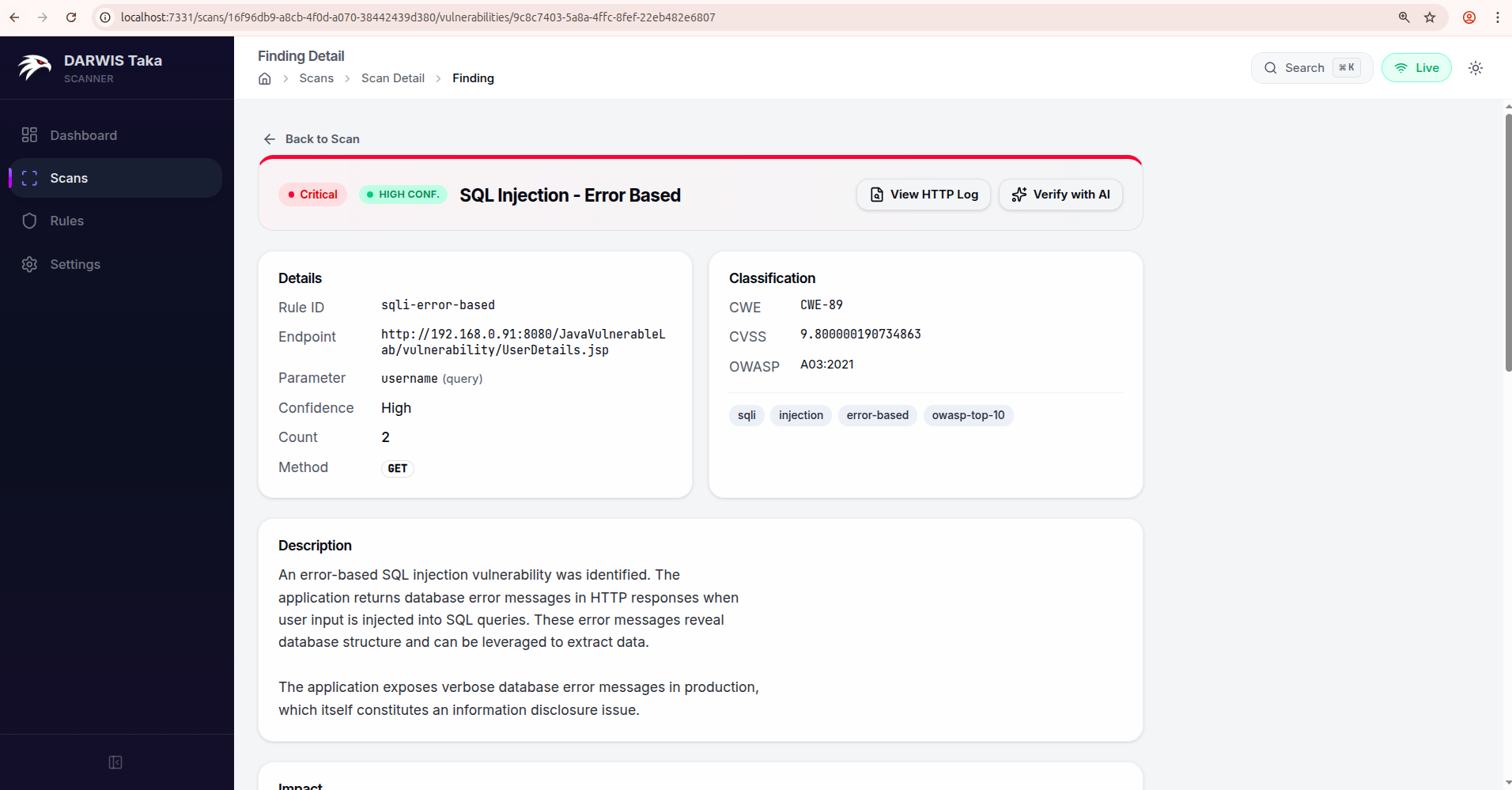
Header
Across the top:
- a Back to Scan link to return to the parent scan;
- the severity badge and (if set) the scanner’s confidence badge;
- the rule name; and
- an AI status badge if AI verification has run on this finding (see Verdict statuses below).
On the right side of the header:
- View HTTP Log: visible when the finding has a captured HTTP method or response status. Opens the raw request/response pair that triggered the match.
- Verify with AI (or Re-verify if a verdict already exists): opens the AI Verification drawer. This button is replaced by a Deterministic check chip for rules that don’t need AI, since those results are pattern-based and always definitive.
Details
Two cards side by side:
Details (left): Rule ID, Endpoint, Parameter (with its location in parentheses, e.g. query, form, header, or cookie), Confidence, Count, and HTTP Method.
Classification (right): CWE, CVSS, OWASP, and a row of Tags at the bottom of the card when present.
Additional sections
Below the two main cards, the following sections are rendered when the rule provides them:
| Section | What it contains |
|---|---|
| Description | Plain-English summary of the vulnerability. |
| Impact | What a successful exploit would let an attacker do. |
| AI Verification | If AI was run: status, confidence meter, reasoning, and any follow-up test results. A Re-verify button is available on this card too. |
| Remediation | Fix guidance from the rule. |
| References | External links (CVE entries, vendor advisories, research blogs). |
| Reproduce | A curl command that reproduces the finding. |
| Payloads | The payload(s) the scanner sent. |
| Evidence | Snippets of the target’s response that matched. |
Only sections whose underlying data exists are shown; a rule that doesn’t ship a remediation string won’t render a Remediation card.
AI Verification drawer
Clicking Verify with AI slides a drawer in from the right.
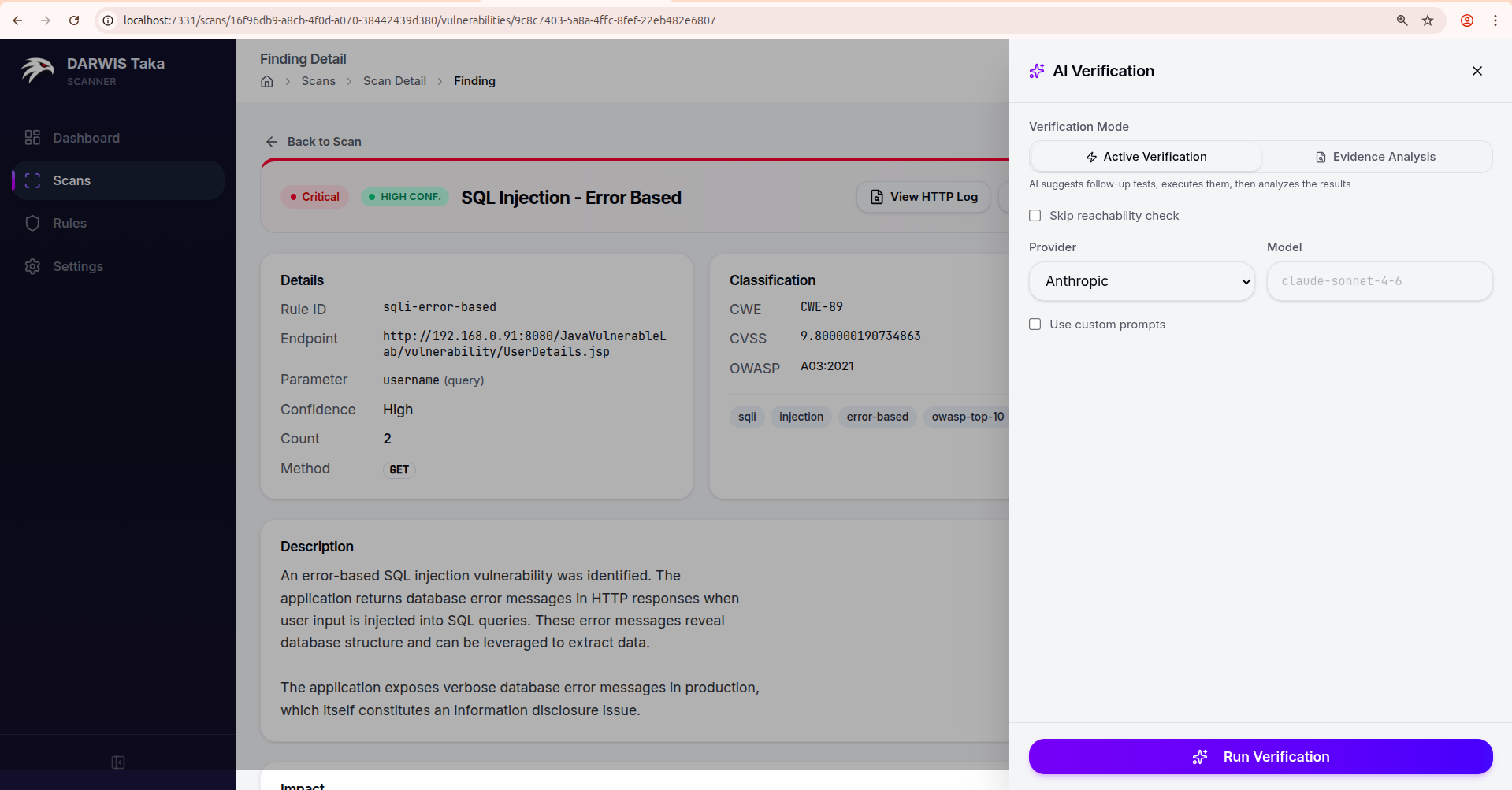
Verification Mode
- Active Verification: the LLM is allowed to suggest follow-up HTTP requests, which Taka sends through the scanner’s HTTP client. The results are fed back to the LLM for a final verdict. Best for findings where the original scanner evidence is ambiguous.
- Evidence Analysis: the LLM only sees the evidence the scanner already collected. No new requests are sent to the target. Use this for production systems or client-owned targets where additional probes would be unwelcome.
In Active mode only, a Skip reachability check checkbox is available. Tick it if the target is off-network or behind a flaky proxy and you want to proceed without the pre-flight check.
Provider, model, and prompts
- The drawer defaults to the provider and model recorded with the finding (or Anthropic/its default if none). You can override either for a single run.
- Use custom prompts reveals the system and user prompt templates. You can edit them inline; a Save as default button saves your edit as the default for this mode (same storage as the AI Verification Prompts card in Settings).
Verdict
After Run Verification completes, the drawer switches to a result view:
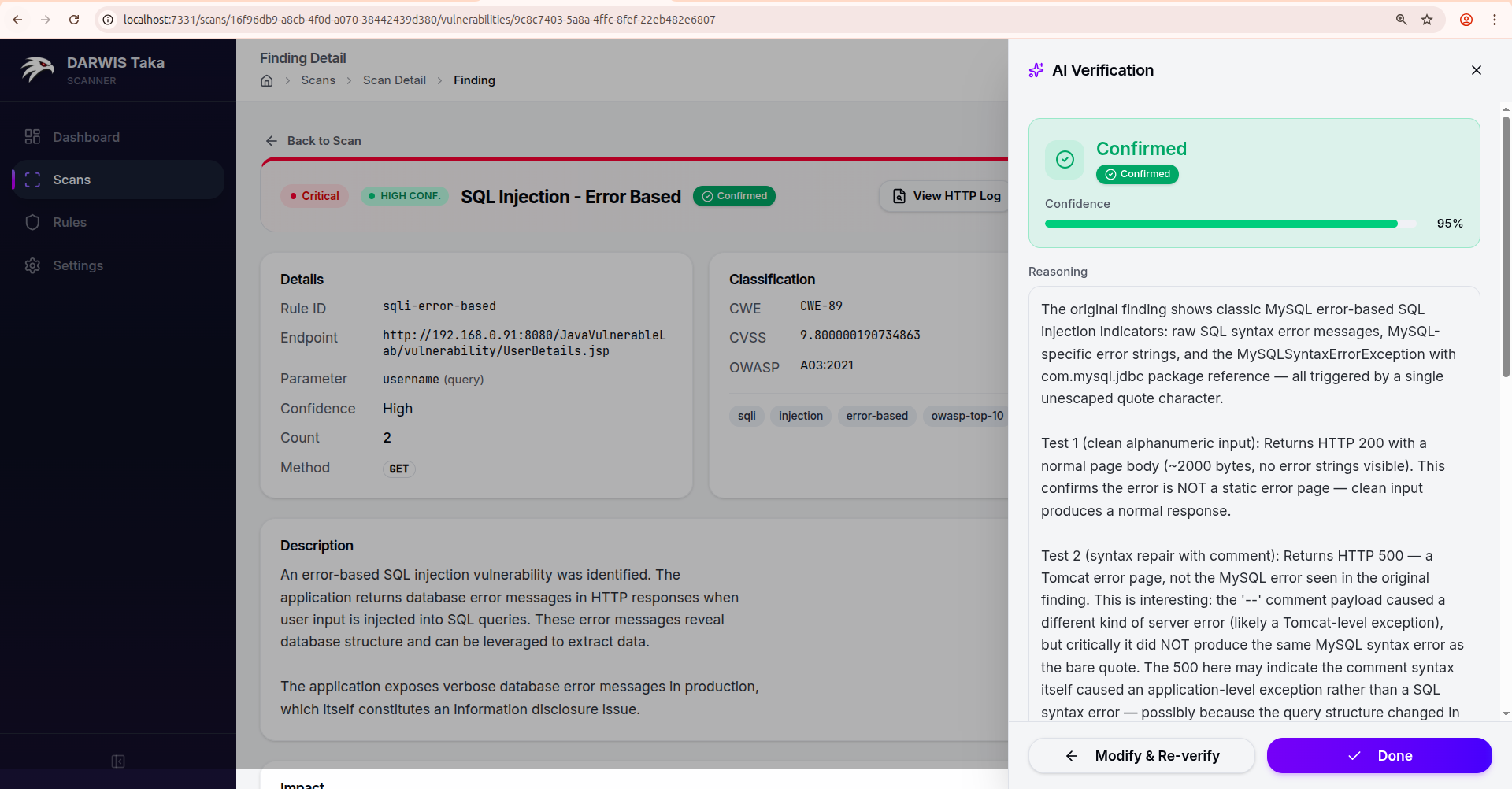
The result card shows the verdict, a Confidence meter (0 to 100%), the Reasoning text, and, in Active mode, the follow-up test results the AI ran. A “Show raw AI response” toggle exposes the unparsed model output.
From here:
- Modify & Re-verify returns to the configure view with your previous settings, so you can tweak the mode, prompts, or model and run again.
- Done closes the drawer. The verdict is saved with the finding and also appears in the AI Verification card on the Finding Detail page.
Verdict statuses
| Status | Meaning |
|---|---|
| Confirmed | The AI believes the finding is a true positive. |
| Likely False Positive | The AI believes the finding is a false positive. Consider excluding the rule for this target. |
| Verification Failed | The verification run failed before producing a verdict (LLM error, bad response, etc.). |
| Partial Result | The LLM produced output that Taka could only partially parse. Reasoning may be available but the verdict isn’t fully trustworthy. |
| AI Verifying… | The run is still in progress. |
| AI Unverified | AI verification was enabled for the scan but hasn’t run on this finding yet. |
Findings marked Likely False Positive are not deleted; Taka always keeps the original rule match. Use the verdict as a triage signal, not a silencing mechanism.
Export
Findings are included in both the JSON and HTML exports available from the scan detail page. The AI verdict, if any, is included alongside each finding.