Quick Start
Run DARWIS Taka on your own host using Docker Compose.
Prerequisites
- Docker Engine 20.10+
- Docker Compose v2
- 2 GB RAM minimum (4 GB recommended when using the browser-based crawler)
- 2 GB disk space for the image and scan data
1. Clone the repository
git clone https://github.com/CSPF-Founder/taka-docker.git
cd taka-docker
2. Start Taka
docker compose up -d
Docker pulls the cysecurity/darwis-taka:latest image and starts the container. The first run also creates the taka_data named volume that holds the SQLite database (all scans, findings, and saved API keys live inside it).
3. Open the Web UI
Visit http://localhost:7331 in your browser.
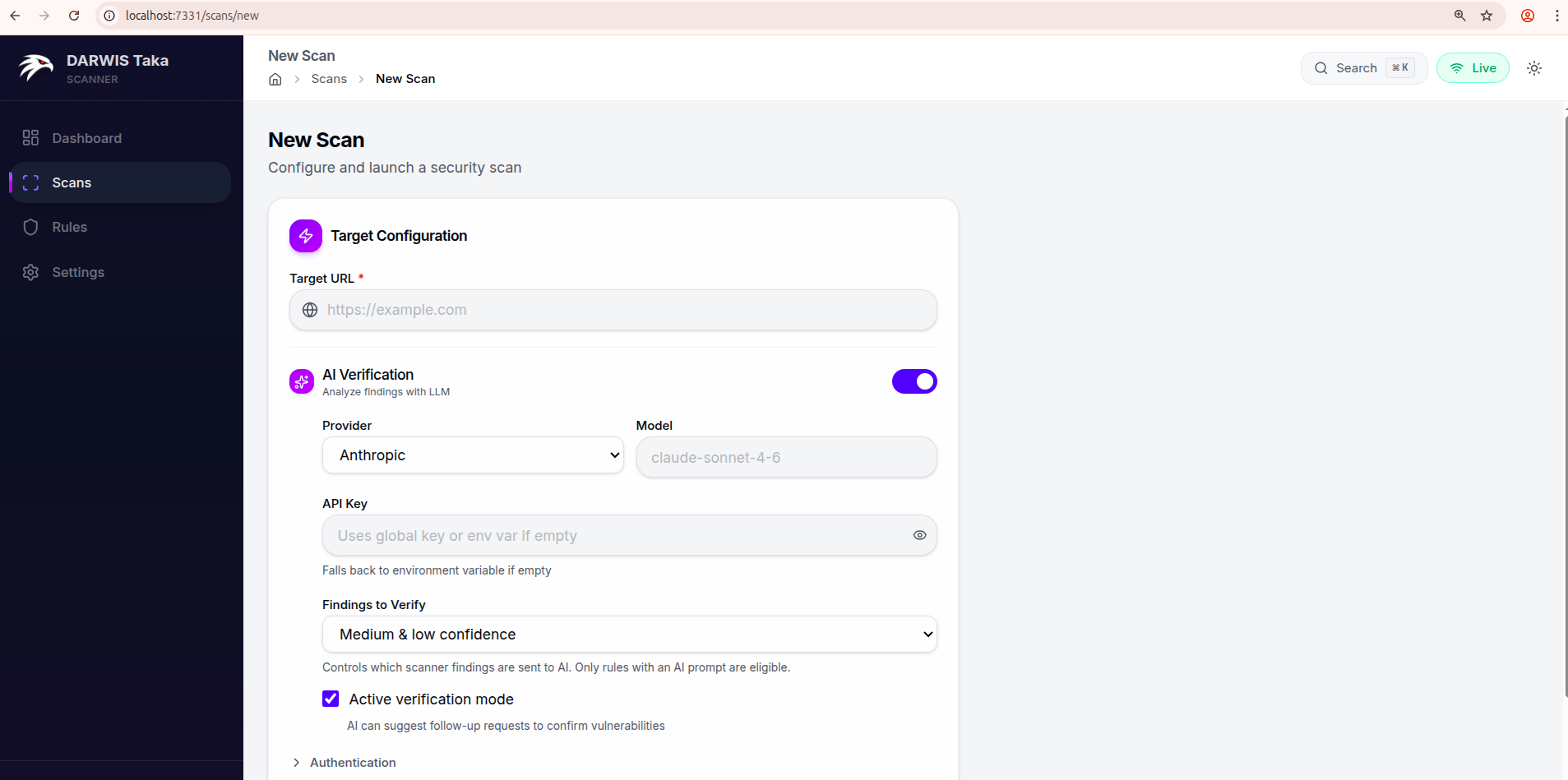
Defaults work out of the box. The left navigation has four sections: Dashboard, Scans, Rules, and Settings.
4. Run your first scan
- Click Scans → New Scan.
- Enter a target URL in Target URL (for example, a local test application).
- Leave AI Verification off for now. You can enable it later from Settings.
- Click Start Scan at the bottom of the form.
Taka crawls the target, runs each rule against discovered URLs, and streams live results to the scan detail page.
5. Review results
Once the scan completes, open it to see the findings table, keyed by rule and colour-coded by severity.
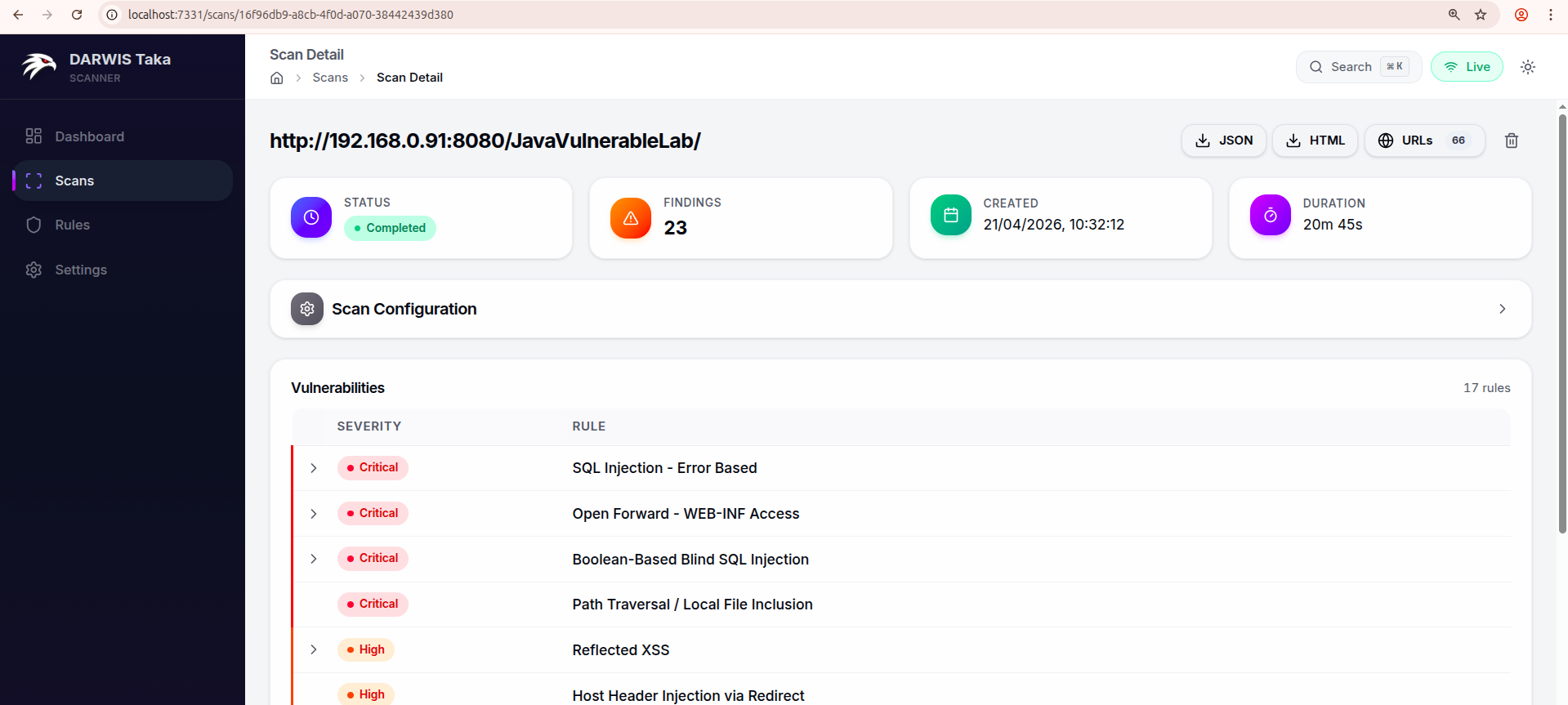
Clicking a rule with a single match opens its Finding Detail page, which shows endpoint, parameter, evidence, CWE/CVSS/OWASP classification, remediation, and a reproducing curl command. The scan detail page has JSON and HTML buttons to export the whole scan.
Common Next Steps
| Task | Where to go |
|---|---|
| Change the exposed port, timezone, etc. | Configuration |
| Enable AI-powered verification | AI Verification |
| Keep scan data when recreating the container | Data Persistence |
| Update to a new release | Updating & Lifecycle |
Verify the service
Check container status and logs:
docker compose ps
docker compose logs -f taka
A healthy start-up log ends with a line indicating the Web UI is listening on 0.0.0.0:7331.