Pentests
A pentest is one round of testing against one client. That might be a quarterly external assessment, an annual full-scope review, or a retest after the client fixes what you reported last time. Client work is rarely a one-off, so each round gets its own pentest record rather than being added to the last one.
Every asset, observation, finding, check and file you record belongs to exactly one pentest. That keeps each round’s results self-contained, while the organization-wide Findings and Recon pages read across all of them: what you reported last time, whether a host has been tested before, what is still open.
The list
Pentests in the top bar lists every engagement in the current organization, newest first.
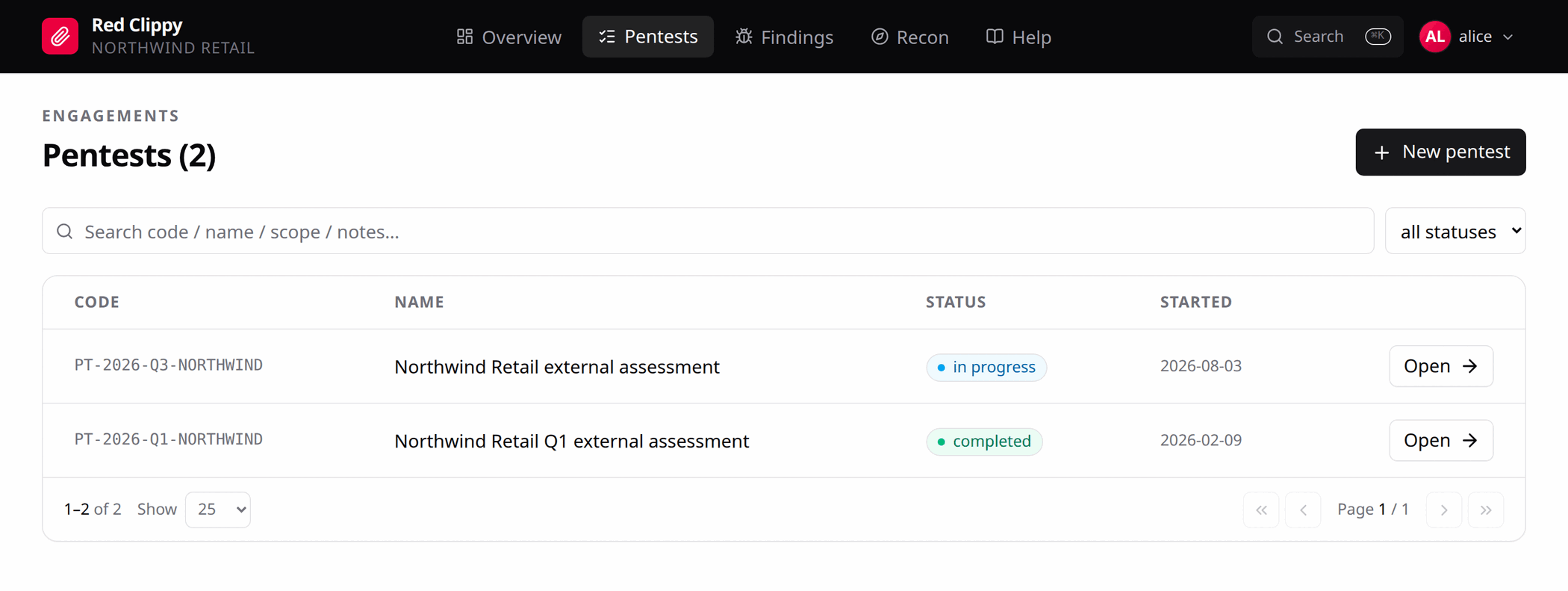
The search box matches on code, name, scope text and notes. The dropdown next to it filters by status. Both live in the URL, so a link to a filtered view sends someone else to the same filtered view, and the browser back button does what you expect.
Creating a pentest
New pentest opens a form with a single field.
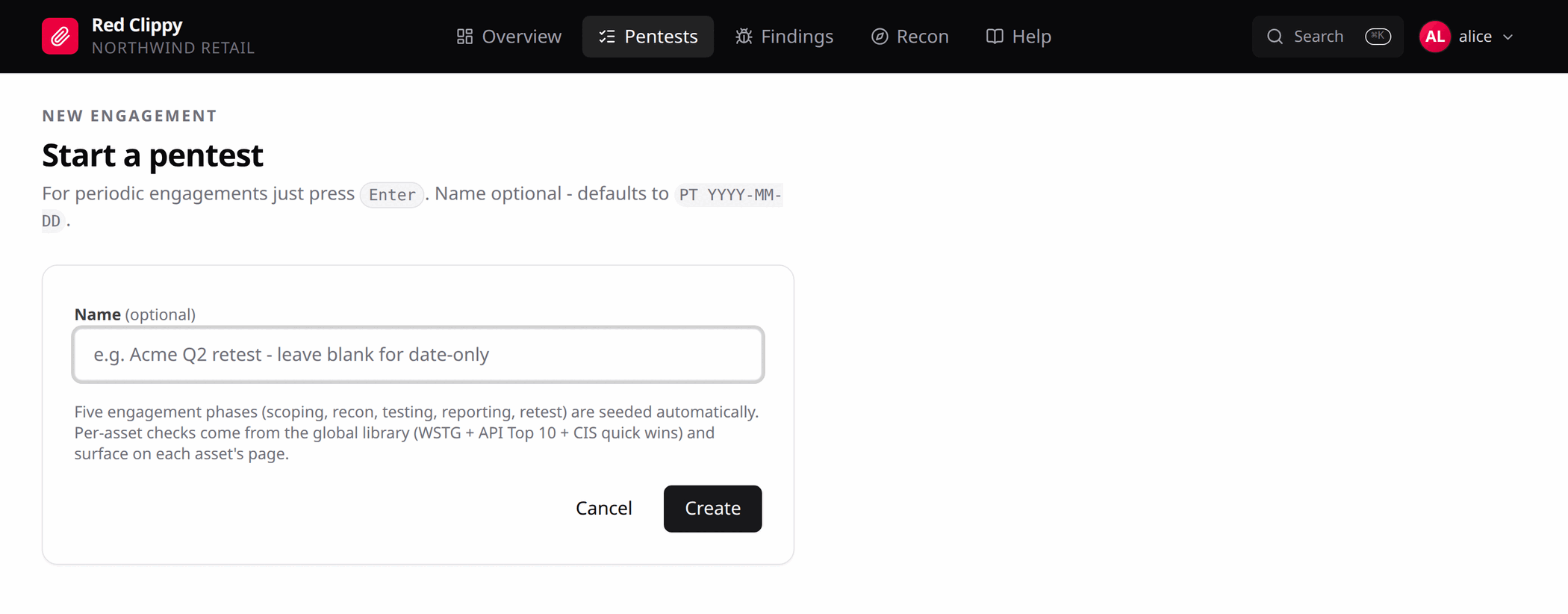
The name is optional. Leave it blank and press Enter for a pentest named
after today’s date, which suits a recurring internal test. Type a name and the
code is derived from it: “XYZ Q3 retest” becomes something like
PT-2026-08-27-xyz-q3-retest.
Creating the pentest seeds the five engagement phases and wires up the check catalogue. The remaining details (code, scope, dates, status) are edited afterwards on the PT Settings page.
The engagement overview
Opening a pentest lands on Overview. This is the “where are we” page.
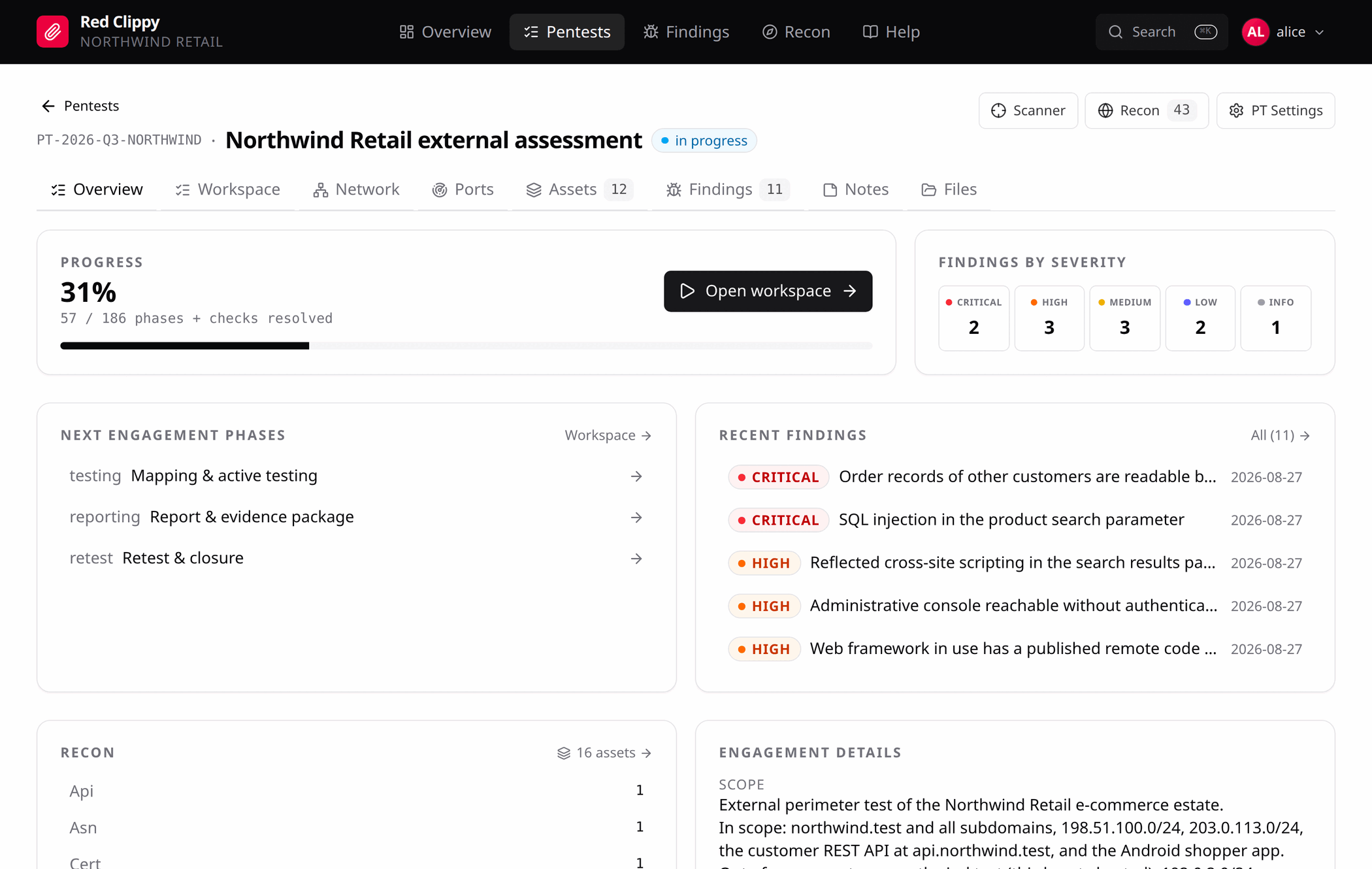
Findings by severity counts this engagement only, unlike the tiles on the main dashboard.
Next engagement phases lists what is still unresolved. Clicking one jumps into the workspace with that phase selected.
Engagement details shows the scope, dates and notes as entered on PT Settings.
PT Settings
The PT Settings button sits top right on every tab inside an engagement.
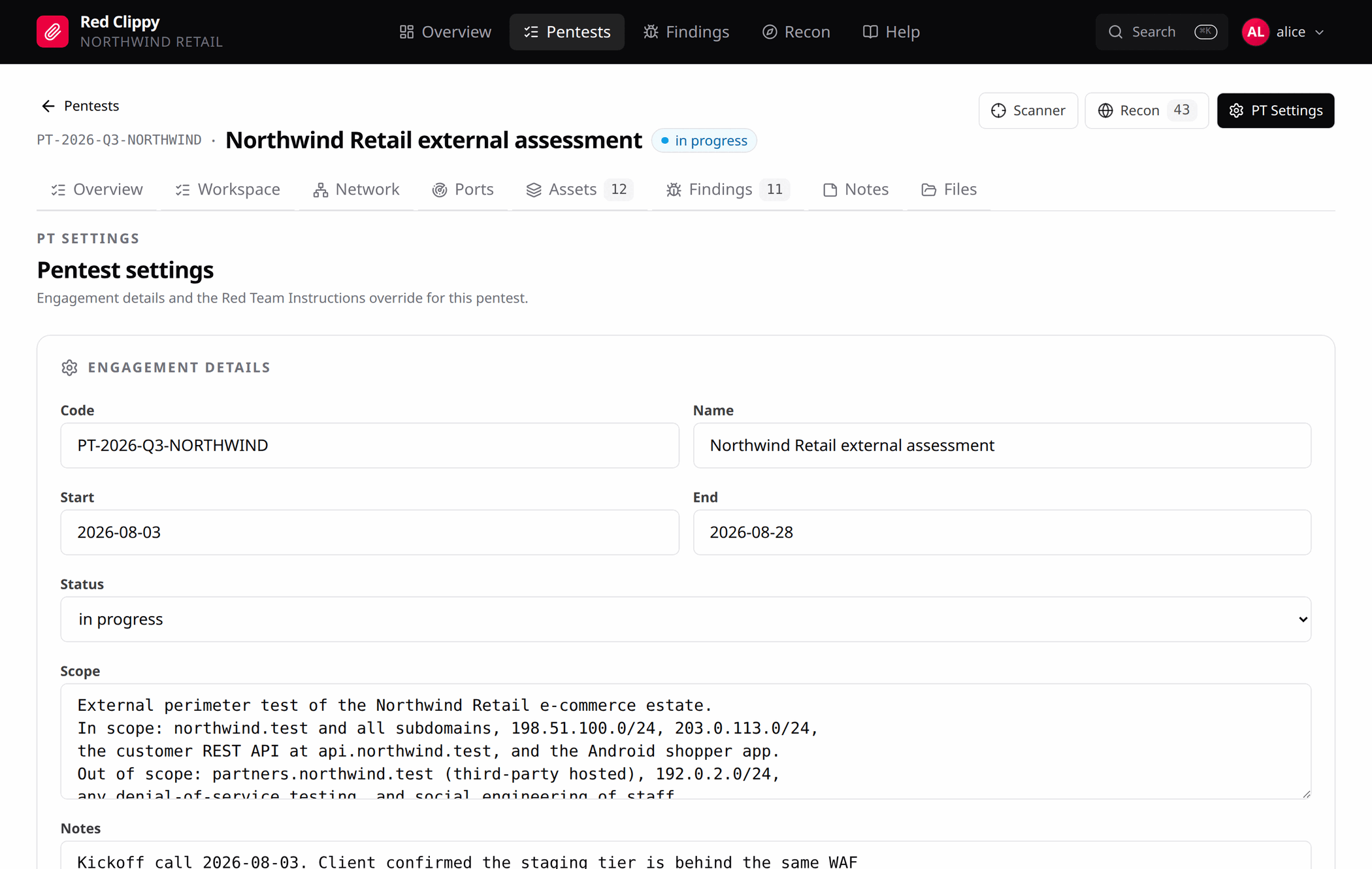
The top card is the engagement record itself:
| Field | Notes |
|---|---|
| Code | Shown for reference. The code is fixed at creation because the on-disk storage path is derived from it, so the server ignores edits to this field. |
| Name | Free text. Required. |
| Start / End | YYYY-MM-DD. |
| Status | planned, in progress, completed, archived. |
| Scope | Free text. Shown at the top of the Network page and under Engagement details. |
| Notes | Anything else about the engagement. Shared with the Notes tab. |
Put the real rules of engagement in Scope: what is in, what is out, the test window, and who to call. Nothing enforces the text, but it is what a human reads before testing and what an agent sees when it reads the engagement. Machine-enforced scope is separate, set with the in-scope and out-of-scope markings on assets and IP ranges.
Below that is the Red Team Instructions override for this engagement, covered in Red Team Instructions.
Closing an engagement
Set the status to completed when the report goes out, and archived when you
are done with it entirely. Archived pentests stay in the list and stay
searchable; the status is a marker, not a filter that hides them.
A pentest cannot be deleted, from the panel or the API or MCP. Assets, observations and findings can each be removed individually, but the engagement record is permanent once created, so a mis-typed code or a throwaway test engagement stays in the list. Archive it.
The one thing that removes a pentest is deleting the organization it belongs to, which takes every other engagement with it. See Organizations and members.