Scope and assets
The Assets tab is the scope list: everything you are testing, everything you have set aside, and everything the customer told you to leave alone.
Adding assets
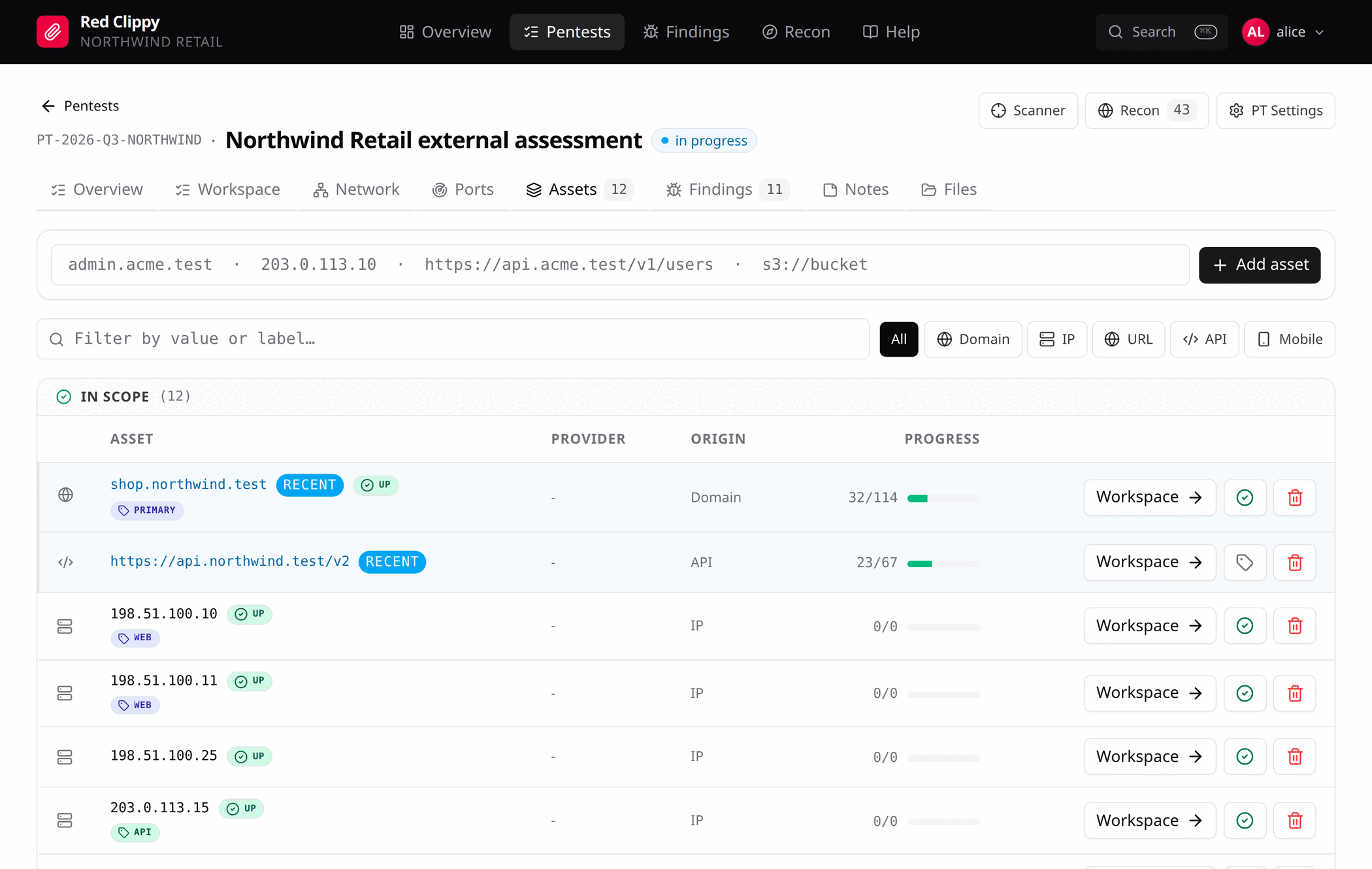
The box at the top takes one value. The kind is inferred from its shape, so
shop.example.com becomes a domain, 198.51.100.11 an IP,
https://shop.example.com/checkout a URL. If the shape is not recognised it
defaults to a domain, which you can correct on the asset’s Details tab.
For anything larger than a handful of values, you have better options than typing:
- import a scanner export, which creates assets and observations in one pass (see Importing scanner output)
- run the built-in scan engine (see Ports and the scan engine)
- hand the customer’s scope list to your agent and let it enter them
Filtering
The filter box matches on the asset value or its label. The chips beside it narrow to one kind: All, Domain, IP, URL, API, Mobile.
Filters live in the URL, so the current view is always linkable.
The three tables
The page splits assets into three tables.
In scope is the working list: assets that are in scope and either marked reachable or not marked at all. This is the remaining workload, and it is the number shown on the Assets tab in the header.
Host down / blocked holds in-scope assets you have flagged as unreachable or WAF-blocked. They are still in scope, just not the next thing to work on. Clear the marking and they move back up.
Out of scope, do not test holds everything excluded. Keeping excluded assets visible means there is always an answer to “why is this not in my list”, instead of the asset having quietly disappeared a week ago.
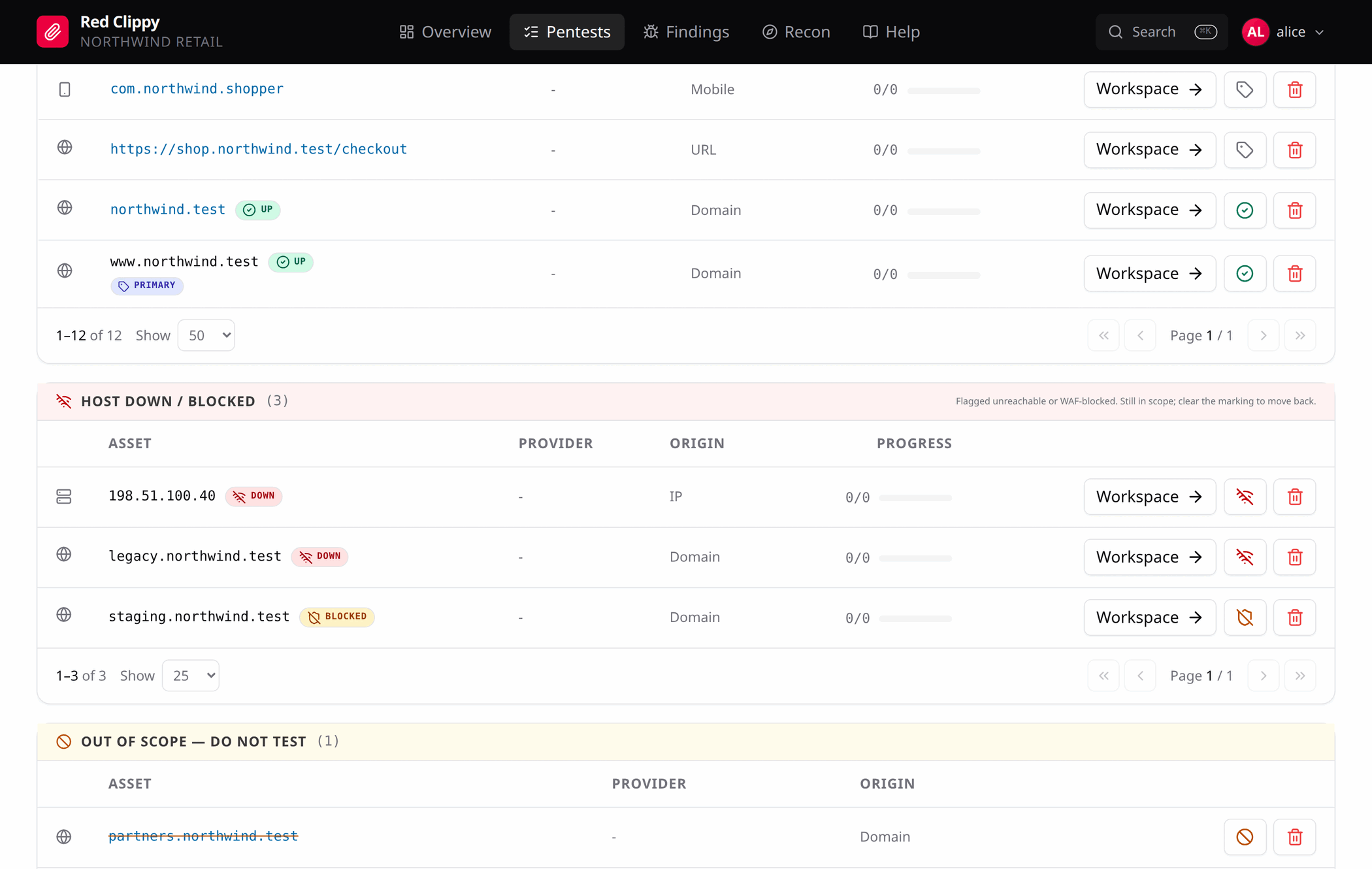
Each table paginates independently, so paging through out-of-scope entries does not disturb your position in the main list.
The columns
| Column | Meaning |
|---|---|
| Asset | The value, plus badges: reachability, label chip, alias link, API count. |
| Provider | Who hosts it (Cloudflare, AWS, Akamai). Useful for spotting third-party infrastructure at a glance. |
| Origin | The asset kind. |
| Progress | Checks done over checks total for this asset. 0/0 means you have not opened its Methodology tab yet, which is what creates the checklist. |
Three controls sit at the end of each row. Workspace opens the asset, the round button opens the marking picker, and the red button deletes.
Deleting an asset removes it, its observations and its check results. Findings
tagged asset:<value> are kept, so an accidental delete does not take your
report with it. You delete those separately from the Findings page.
Marking scope and reachability
The round button on each row opens a picker with the available markings:
| Marking | When |
|---|---|
| Reachable | The host answers. |
| Host down | Probes do not connect at all. |
| Getting blocked | A CDN or WAF is short-circuiting your requests. Different problem, different fix. |
| Unknown | Clears the marking. |
| Out of scope | Excludes the asset from testing and moves it to the bottom table. |
Marking something out of scope also clears its reachability, because it is not going to be probed either way.
The same fields, plus a note, are on the asset’s Details tab, where you can
record the evidence for the marking (Cloudflare 1020,
ECONNREFUSED 80/443). The note stops the same host being re-probed by three
different people over a week.
Labels
A label is a short tag of your own choosing: primary, revisit,
client-confirmed. It renders as a coloured chip in the table and beside the
asset title.
Clicking a chip filters the whole page to everything sharing that label, and clicking it again clears the filter. Labels are free text with a 40-character limit, set on the asset’s Details tab.
Asset details
Open an asset and choose Details.
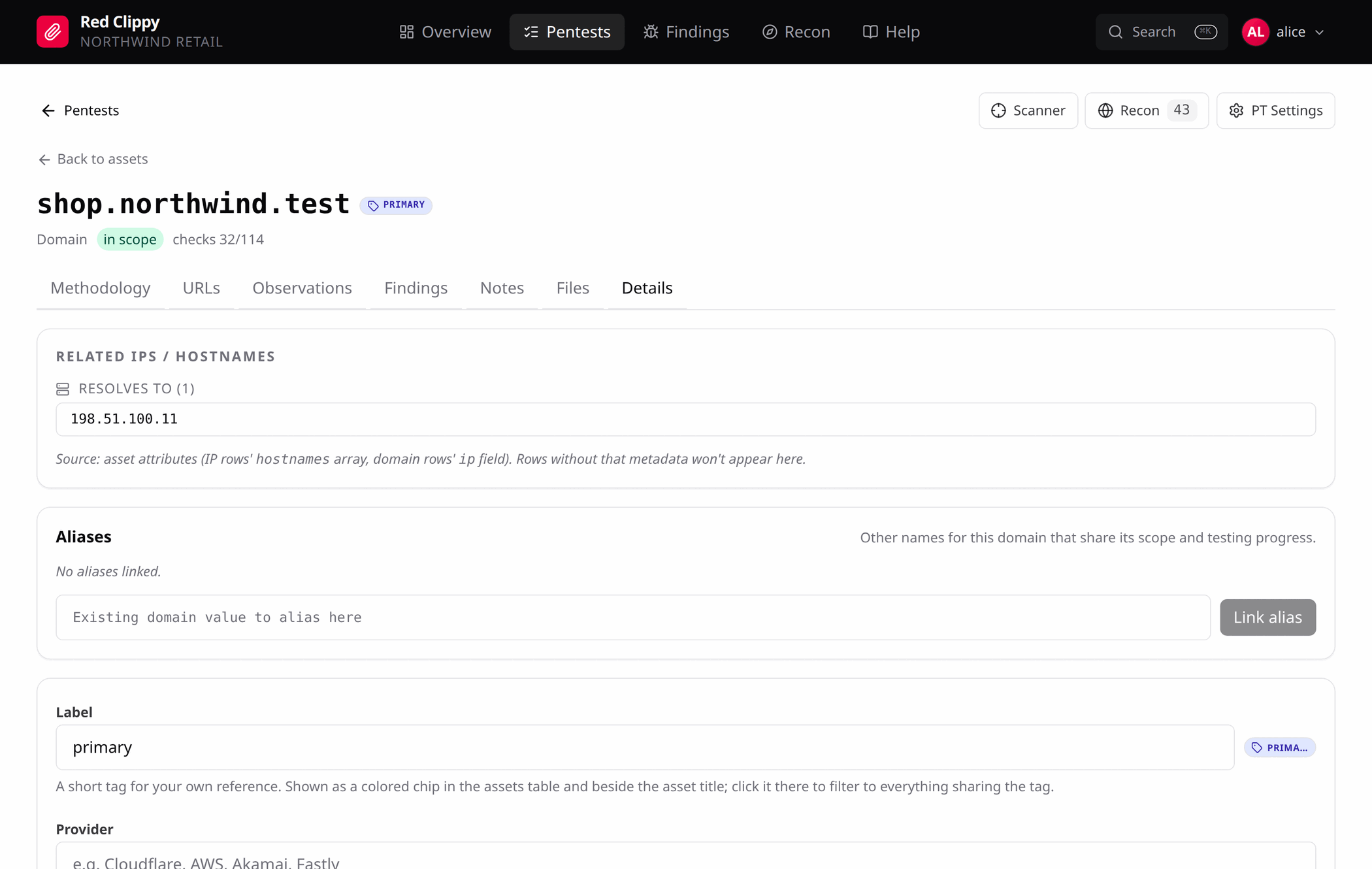
Four things live here.
Related IPs / hostnames shows what this asset resolves to, read from asset attributes that scanner imports populate. A domain lists the IPs behind it; an IP lists the hostnames pointing at it. Rows imported without that metadata do not appear.
Aliases record that two names are the same target. Link
www.example.com as an alias of example.com and it inherits the
canonical’s scope and reachability, and no longer needs testing of its own. The
alias row still exists and is still searchable, but testing the canonical now
covers both.
Label, Provider and Organization are free-text metadata. Set Organization only when the asset is owned by someone other than the engagement’s customer. That is usually the sign of a third-party host which should probably be out of scope.
Reachability and the Out of scope checkbox are the same markings as the row picker, with room for the note.
The Recon drawer
The Recon button in the engagement header opens a side drawer over whatever page you are on.
It lists the engagement’s observations grouped by kind, with a search box and a kind filter, and a small add form at the top. The add form is kind-aware: pick one of the five asset kinds and it creates an asset, pick anything else and it creates an observation attached to the matching asset.
The drawer shows at most 200 rows, and says so when it has cut the list short. For anything bigger, use the Assets tab or the asset’s own Observations tab. Both paginate properly.