Findings
A finding is something you are prepared to put in the report. Anything you cannot yet defend belongs in an observation or a note until you can.
The list
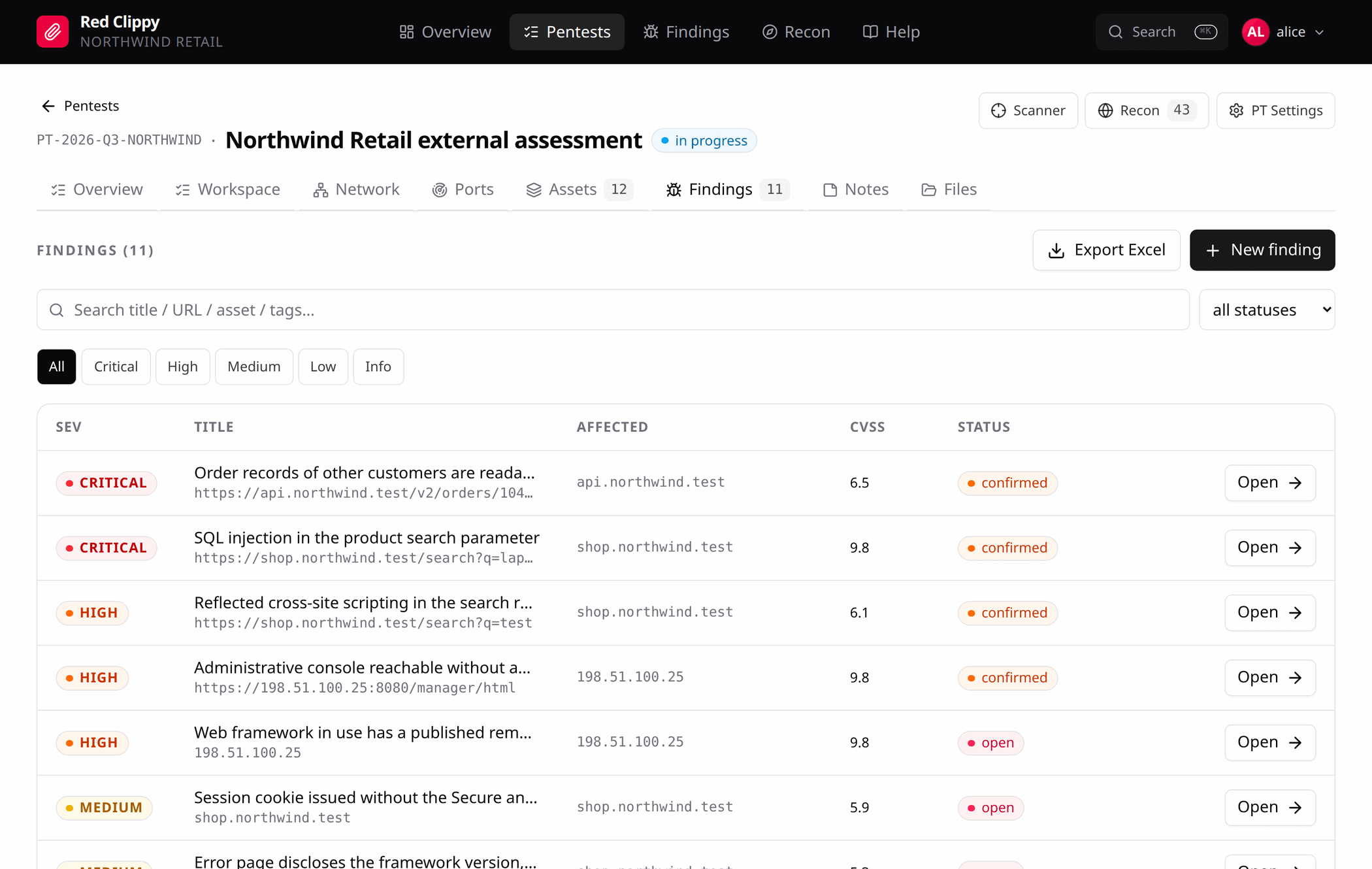
Findings are sorted by severity first, then newest first, so critical work is always at the top. Filters live in the URL, so a filtered view is linkable and the back button works.
The search box matches title, URL, affected asset and tags. Clicking the active severity chip clears it.
The Affected column links to that asset’s workspace, the quickest way from a finding back to the rest of what you know about the host.
Export Excel downloads the current filter, not the whole list.
The finding form
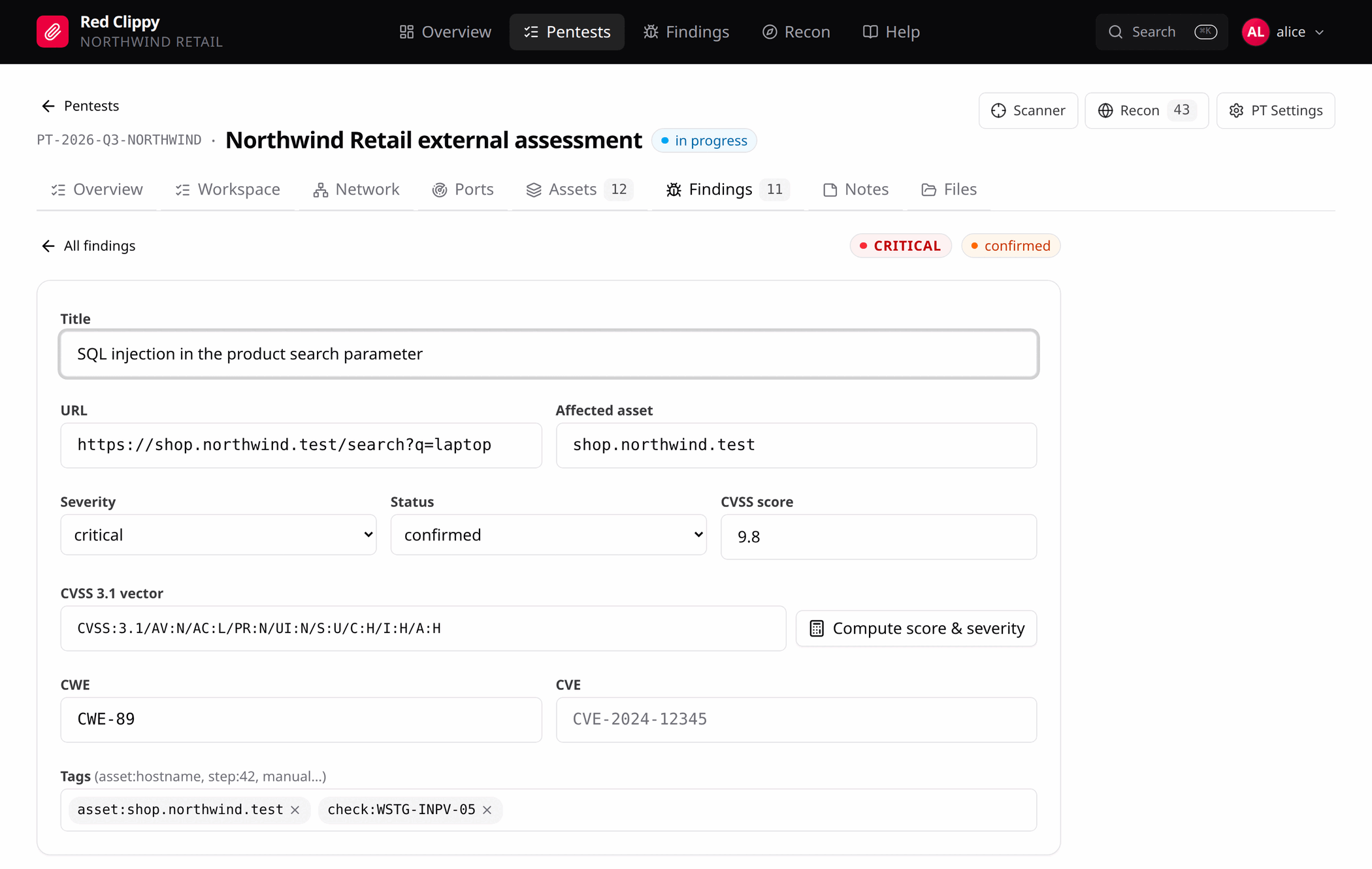
The first card is the classification:
| Field | Notes |
|---|---|
| Title | Required. Describe the vulnerability class and the behaviour. Keep the host, path and product name out of it; they have their own fields, and a title that names one host is useless when the same bug turns up on three. |
| URL | Where it manifests, when there is a specific one. |
| Affected asset | Hostname, IP or component. This is what the Affected column links on. |
| Severity | critical, high, medium, low, info. |
| Status | open, confirmed, remediated, accepted, false positive. |
| CVSS score | 0.0 to 10.0. Fill it in by hand or let the calculator do it. |
| CVSS 3.1 vector | The vector string. |
| CWE / CVE | CWE-89, CVE-2024-12345. |
| Tags | Free-form chips. Type and press Enter, or type a comma. |
Compute score & severity parses the vector, writes the base score into the CVSS score field, and sets the severity to the matching band. Paste a vector from any source, press the button, and both derived fields match the vector instead of whatever was typed before.
Two tag conventions the panel understands:
asset:<value>puts the finding on that asset’s Findings tabcheck:<code>puts it under that catalogue check in the workspace
Anything else is yours to use as you like. retest-passed, unverified and
manual are all reasonable.
The four text fields
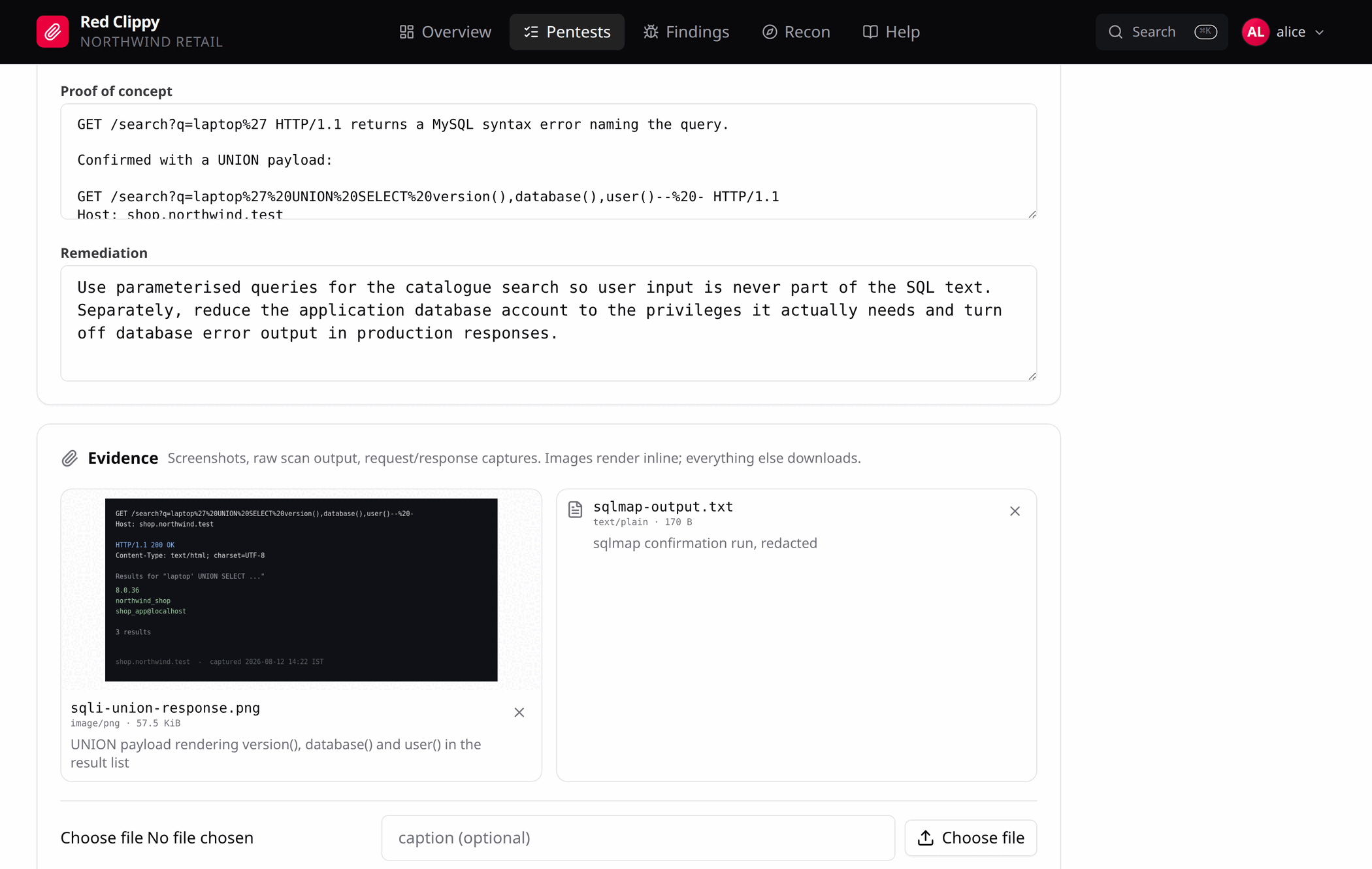
Four text areas, and they are not interchangeable:
Details is what is broken and where it shows up, in language a non-expert can follow. Not the exploit, not the fix, not a definition of the vulnerability class.
Impact is the concrete consequence: what data is exposed, what privilege is gained, what control is bypassed. Business impact, not exploit mechanics.
Proof of concept is the technical evidence. The request, the response excerpt, the payload, the stack trace. One self-contained request that proves the bug is worth more than five that circle it. Use triple backticks for blocks.
Remediation is what needs to change and what the end state looks like. Name the broken control. Resist writing the patch itself. Specific commands, config snippets and library versions are wrong often enough to cost you credibility, and the engineers reading the report know their own stack.
Evidence
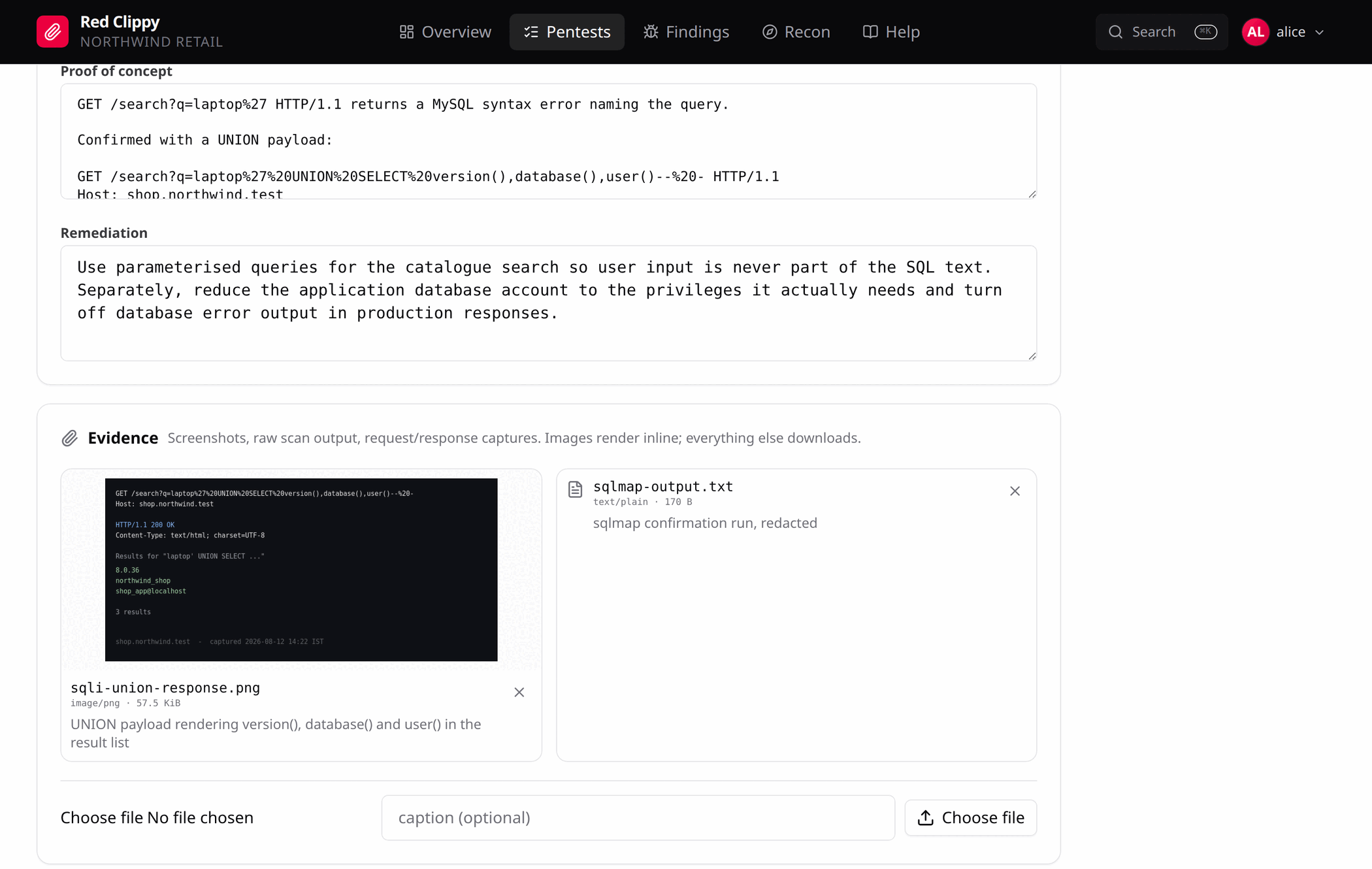
Below the body are the files attached to this finding. Images render inline and open full size in a new tab. Everything else shows as a file row and downloads.
Pick a file, optionally add a caption, and upload. The default size limit is
25 MiB per file, configurable with max_upload_bytes.
Evidence files are stored under the engagement’s directory with server-generated names, so the original filename never touches disk. See Files on disk.
Exporting findings
Two Excel exports, both plain .xlsx:
- Export Excel on an engagement’s findings list exports that engagement, honouring the current search, severity and status filters
- Export Excel on the cross-engagement Findings page exports everything in the organization, with two extra leading columns for the pentest code and name
Columns are ID, Title, Severity, Status, CVSS Score, CVSS Vector, CWE, CVE, URL, Affected Asset, Tags, Details, Impact, PoC, Remediation, Created, Updated.
Deleting a finding
Delete on the finding form removes it after a confirmation. Deleting an asset does not delete findings tagged against it, so an over-enthusiastic scope cleanup cannot take your report with it.