Install and first run
Red Clippy ships as one executable. Download it, run it, open the browser.
Get the binary
Take the archive for your platform from the latest release.
Linux
tar xzf red-clippy-*-x86_64-unknown-linux-musl.tar.gz
cd red-clippy-*-x86_64-unknown-linux-musl
./red-clippy serve
Windows
Unzip the archive, then from that folder in PowerShell:
.\red-clippy.exe serve
If Windows SmartScreen or a firewall prompt appears the first time, allow the app. It listens on localhost only, so nothing outside the machine can reach it unless you change the bind address yourself.
The server prints a line like this and then stays in the foreground:
INFO red_clippy::web: red-clippy listening addr=127.0.0.1:7337 storage=./red-clippy-storage
Leave that window open. Closing it stops the server; Ctrl+C stops it on
purpose.
Files created on first run
Red Clippy writes into whatever directory you launch it from:
| Path | What it is |
|---|---|
red-clippy.db | The database. Everything is in here. |
red-clippy-storage/ | Uploaded evidence and per-pentest files. |
red-clippy.toml | Optional config file, read if present. |
Keep the binary and these together, and cd into that folder before starting
the server. Both paths can be moved, see Configuration.
Create the first account
Open http://127.0.0.1:7337. Because the database is empty there is nothing to log into yet, so the browser shows a setup wizard instead of a login form.
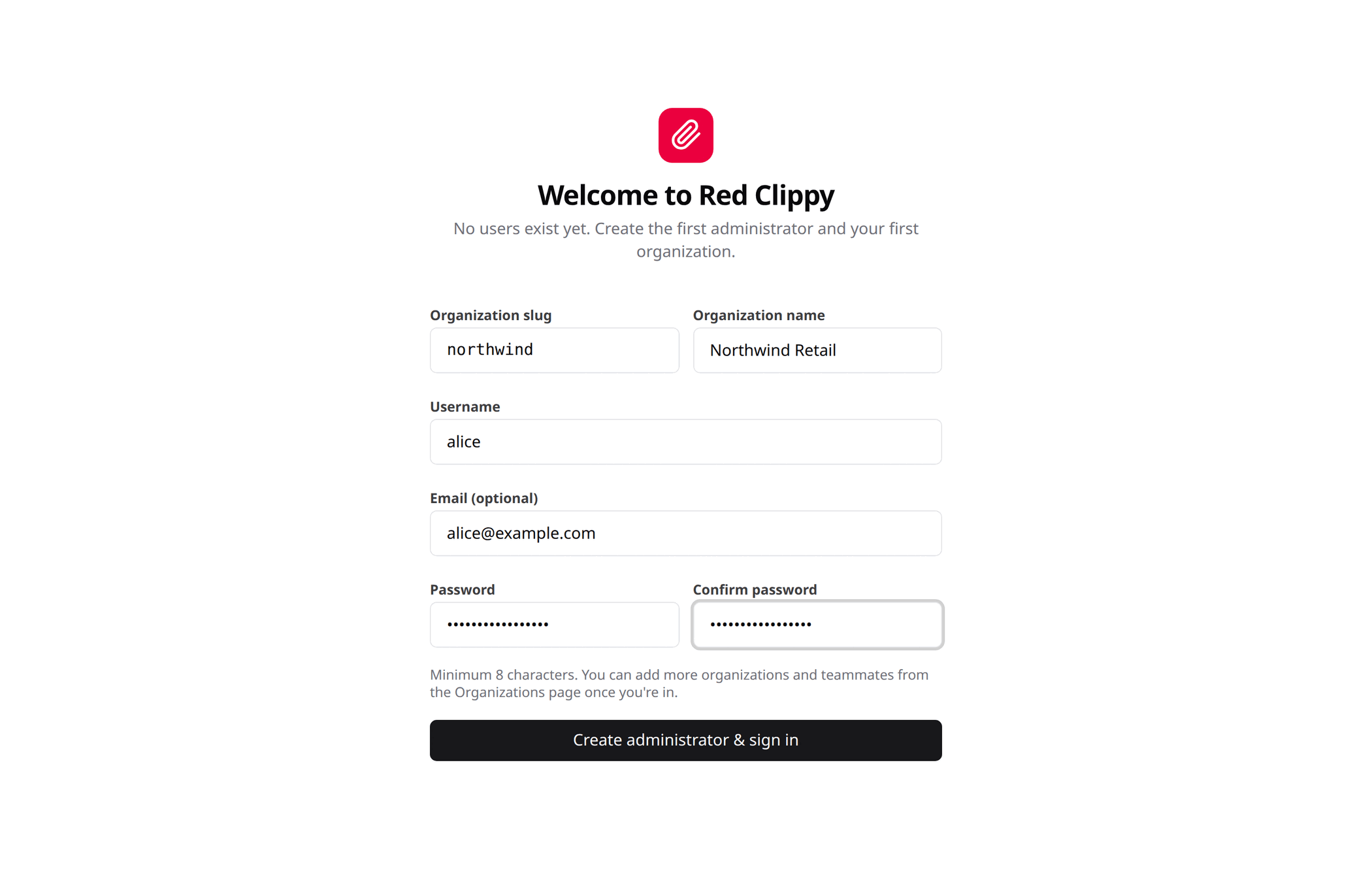
It asks for:
- an organization slug and display name, which become your first workspace
- a username, and optionally an email
- a password, at least 8 characters, typed twice
Submitting creates the organization and your account, and signs you in. The wizard only appears while the database has no users, so it cannot be used later to add a second account.
The slug is permanent because it names the organization’s folder on disk
(red-clippy-storage/org_<slug>/). The display name can be changed whenever
you like. Use something short and lowercase for the slug: letters, digits,
hyphen and underscore only.
Signing in
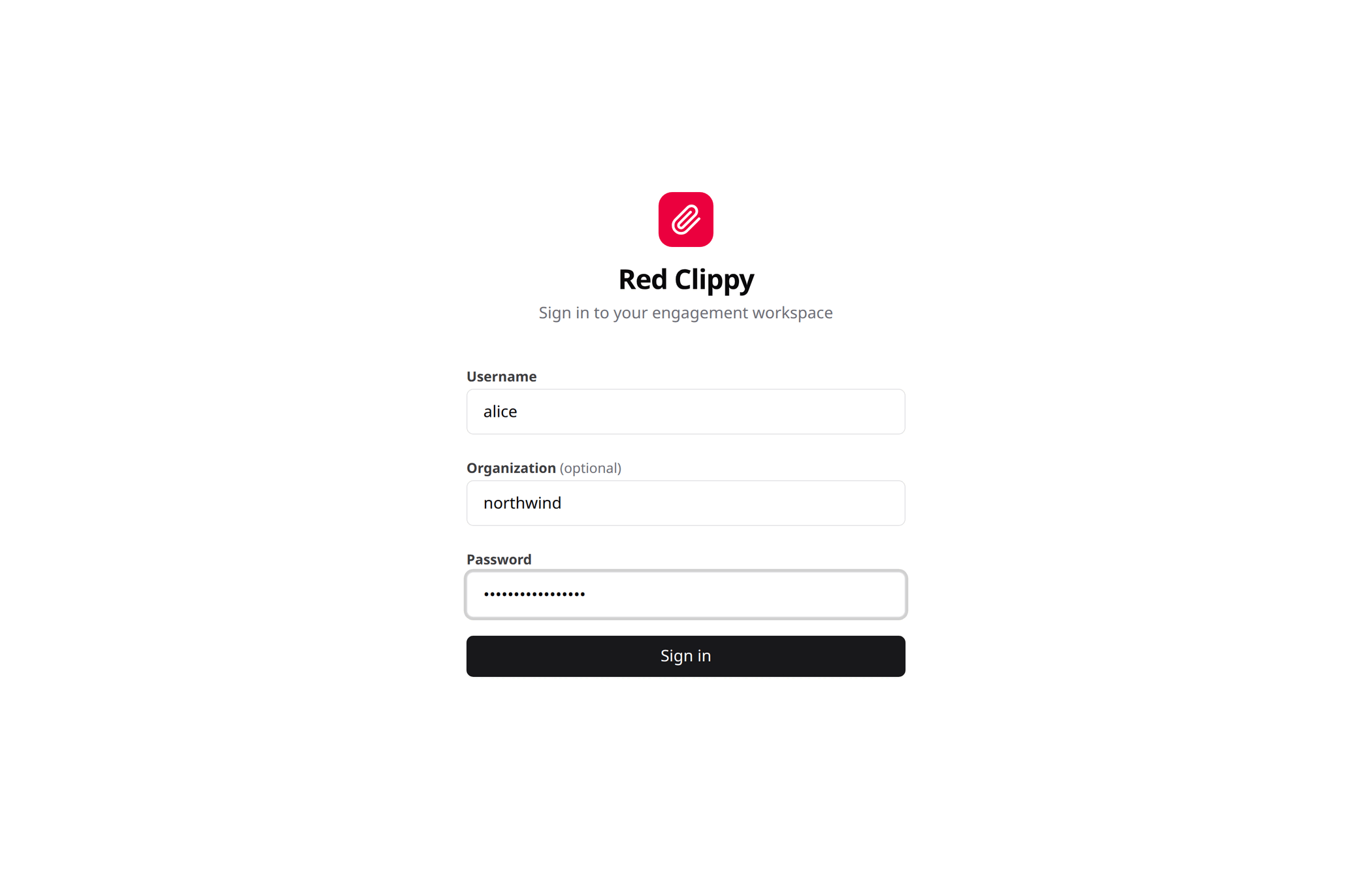
From then on you sign in with your username and password. The Organization field is optional: leave it blank to land in your default organization, or type a slug to go straight to that one. If you belong to several organizations, you can also switch between them after signing in from the avatar menu.
If nobody can sign in, reset a password from the command line on the server:
red-clippy reset-password --username alice --password 'new-one'
That signs the user out everywhere and sets the new password immediately.
Next steps
- How the data is organized explains organizations, pentests, assets, observations and findings, which is worth ten minutes before you start entering real work.
- Getting around walks the panel.
- Connecting an agent over MCP is the part most people are here for.