API Scanner
API Scanner is an automated security testing tool that scans REST and SOAP APIs for vulnerabilities using OpenAPI/Swagger specifications and WSDL files.
Docker Hub: cysecurity/api-scanner
Features
-
OpenAPI Scan - Upload an OpenAPI spec (JSON/YAML) to scan REST API endpoints for security vulnerabilities. Supports unauthenticated and authenticated scans with Basic, Bearer, or API key authentication.
-
SOAP Scan - Upload a WSDL/XML file to scan SOAP web service operations. Supports Basic, Bearer, API key, and WS-Security authentication.
-
API Discovery - Scan a target URL to automatically discover API endpoints, OpenAPI/Swagger definitions, GraphQL endpoints, and health check paths.
-
JSON to YAML Converter - Convert OpenAPI specification files from JSON to YAML format.
Getting Started
See the Getting Started guide to access the web panel and log in.
Getting Started
Accessing the Panel
Open a browser and navigate to:
https://<your-host>:4455
Note
If using a self-signed certificate, your browser will show a security warning. Accept it to proceed.
First-Time Setup
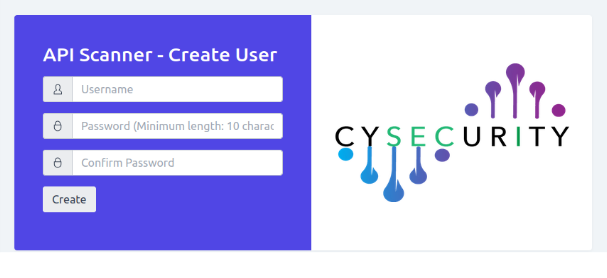
On first access, you will be prompted to create an account. Enter a username, a password (minimum 10 characters), and confirm the password, then click Create.
Login
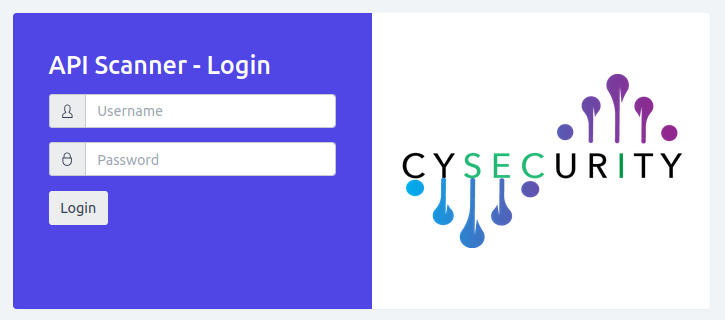
After the account is created, enter your username and password to log in.
OpenAPI Scan
OpenAPI Scan analyzes REST APIs for security vulnerabilities. Upload an OpenAPI (Swagger) specification file in YAML or JSON format that defines your API endpoints, operations, and request/response formats. The scanner discovers and tests all exposed endpoints for common vulnerabilities.
Prerequisites
- An OpenAPI definition file (
.json,.yaml, or.yml) for the target API. - The OpenAPI file must accurately reflect the deployed API for complete and reliable scan results.
Adding a Scan
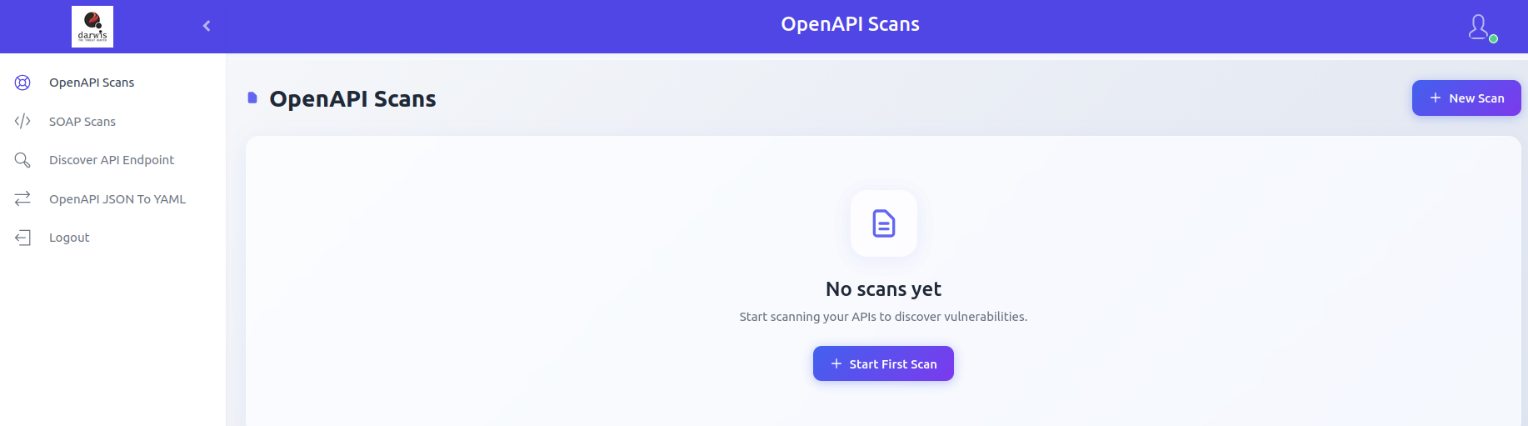
From the sidebar, click OpenAPI Scans. If no scans exist, click Start First Scan. Otherwise, click New Scan in the top-right corner.
Select your OpenAPI file by clicking Click to upload or by dragging and dropping it.
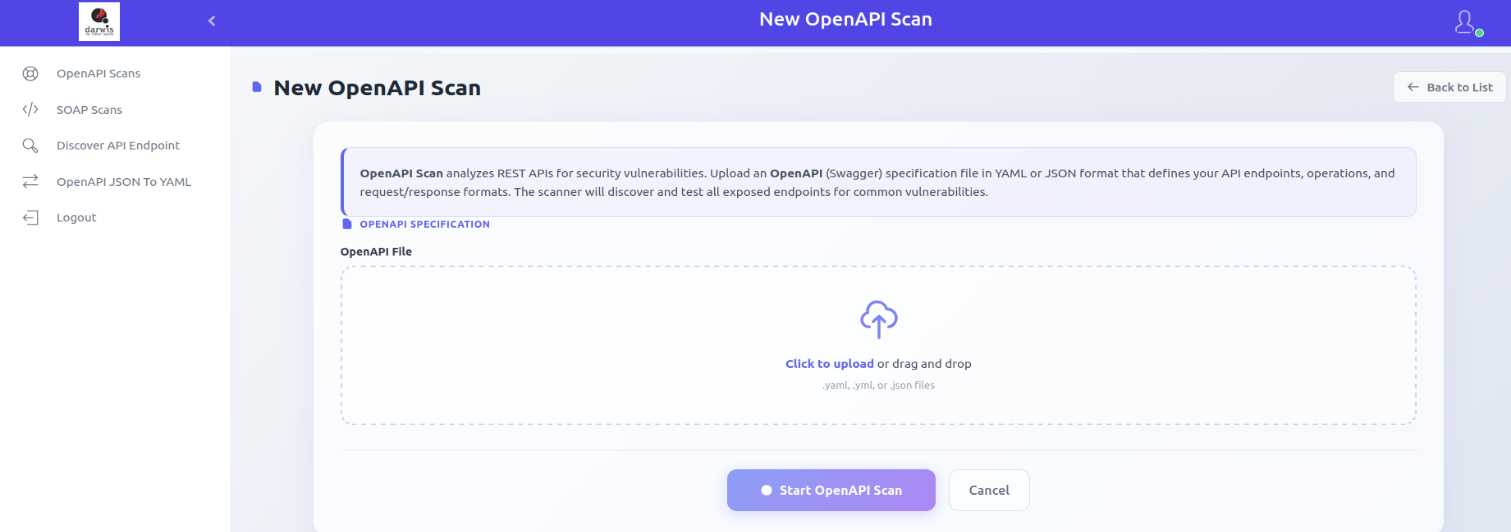
Unauthenticated Scan
Tests API endpoints without authentication credentials, simulating an anonymous external user.
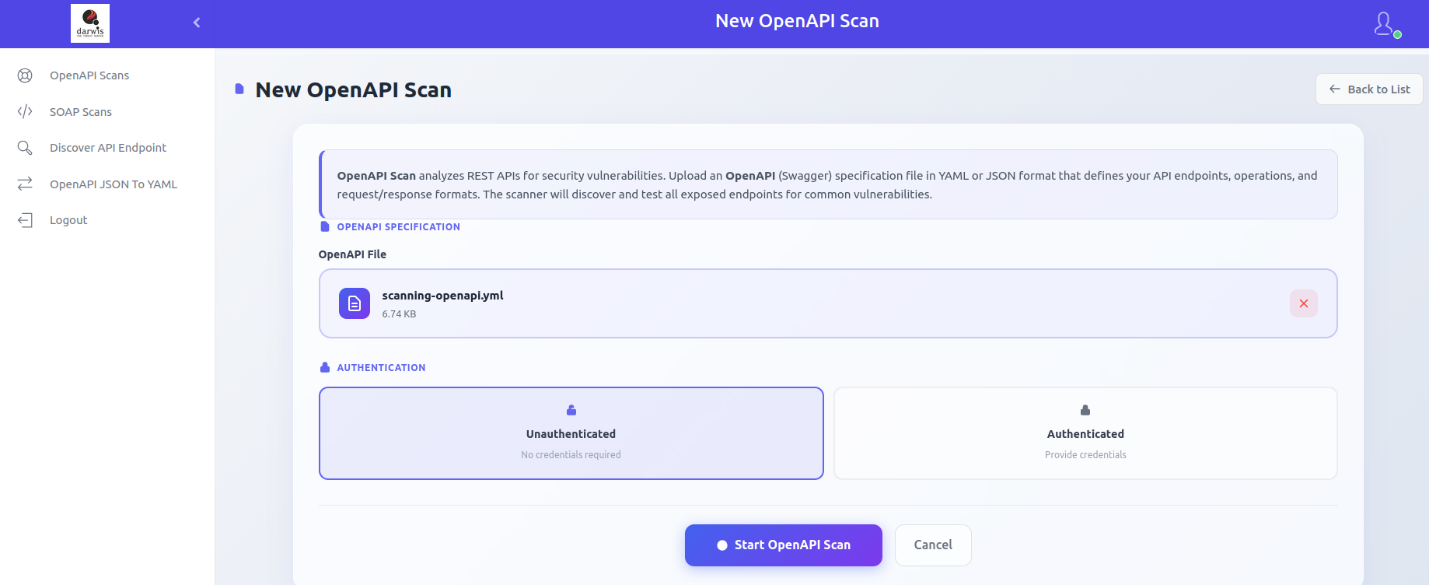
Authenticated Scan
Tests API endpoints using valid credentials. Supported authentication methods:
- Basic Authentication - Username and password
- Bearer Token - Authorization token
- API Key - Custom API key header
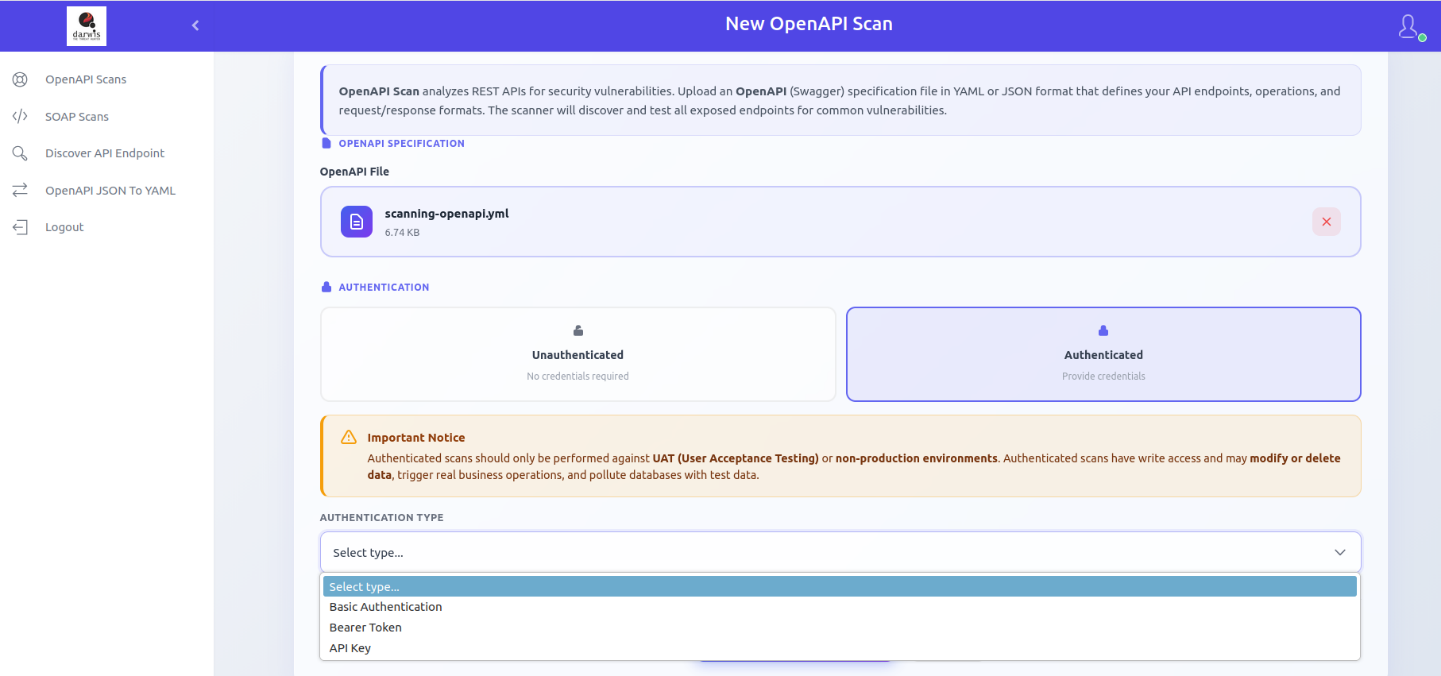
Warning
Only run authenticated scans on UAT or non-production environments. Authenticated scans may have write access and can modify or delete data, trigger real business actions (emails, payments), and pollute databases with test data.
After configuring the scan, click Start OpenAPI Scan.
Note
Scans are queued and run sequentially. If other scans are pending, the new scan will start after they complete. If this is the first scan, it starts immediately.
Viewing Scans
Click OpenAPI Scans in the sidebar to view all scans.
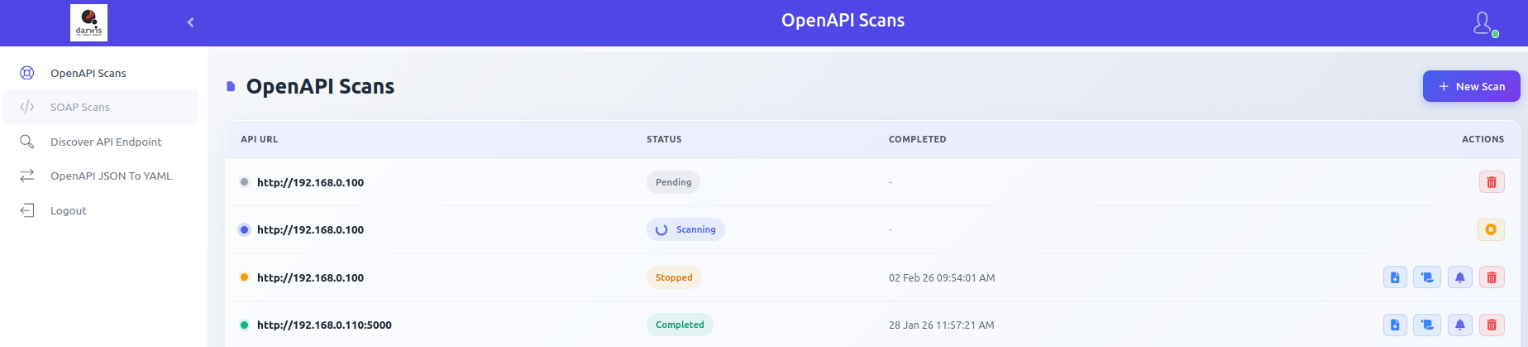
Each row shows:
| Column | Description |
|---|---|
| API URL | The API endpoint being scanned |
| Status | Current scan state (see below) |
| Completed | Date and time the scan finished |
| Actions | Report, Error Logs, View Results, Delete |
Scan Statuses
| Status | Meaning |
|---|---|
| Pending | Waiting for other scans to complete |
| Scanning | Currently in progress |
| Completed | Finished with report generated |
| Failed | Did not complete due to an error |
| Unreachable | Target URL cannot be accessed from the server |
| Stopped | Manually stopped by user |
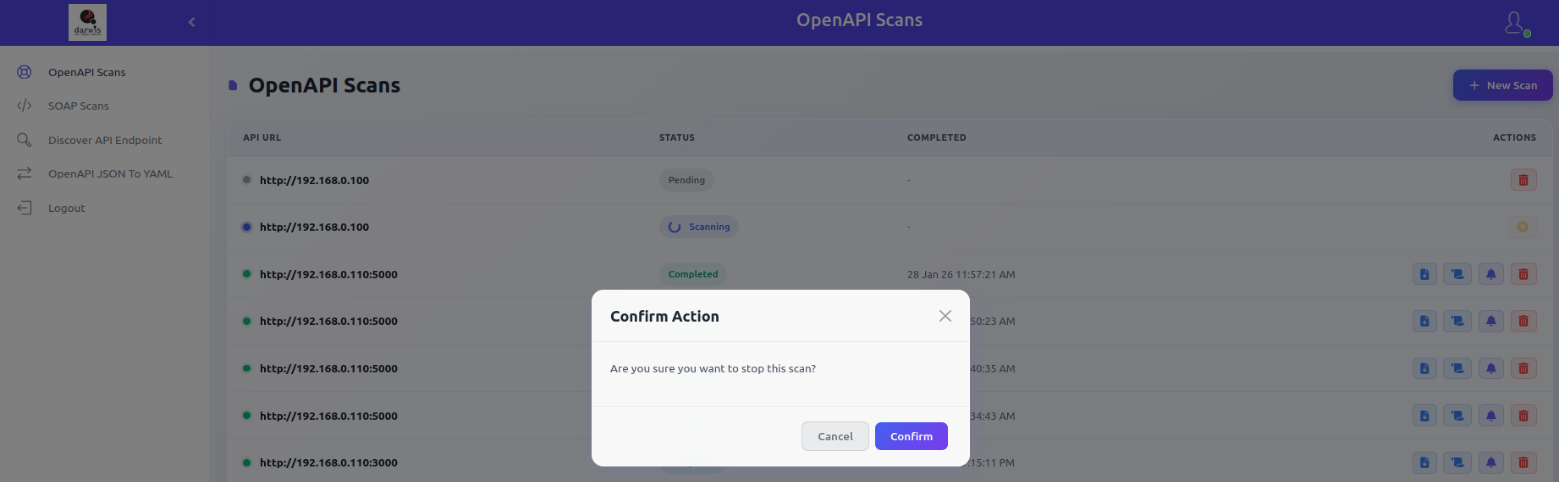
Stopping a Scan
Click the Stop icon on a running scan to stop it. Partial results will be generated.
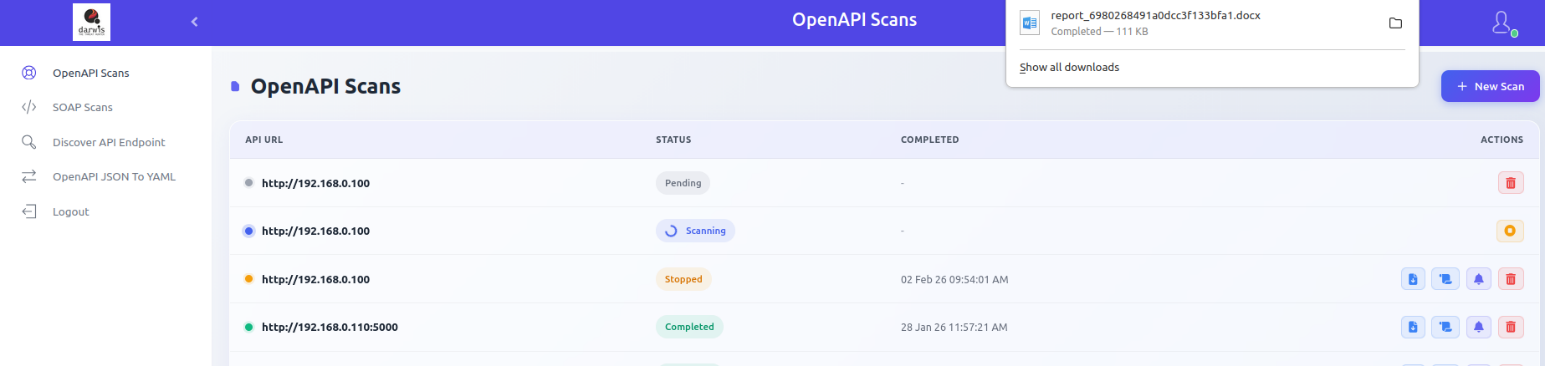
Report
Available after scan completion. The report includes:
- Overall CVSS score and severity
- Executive summary with key findings, risk assessment, and recommendations
- CVE and CVSS metrics
- Remediation guidance and references
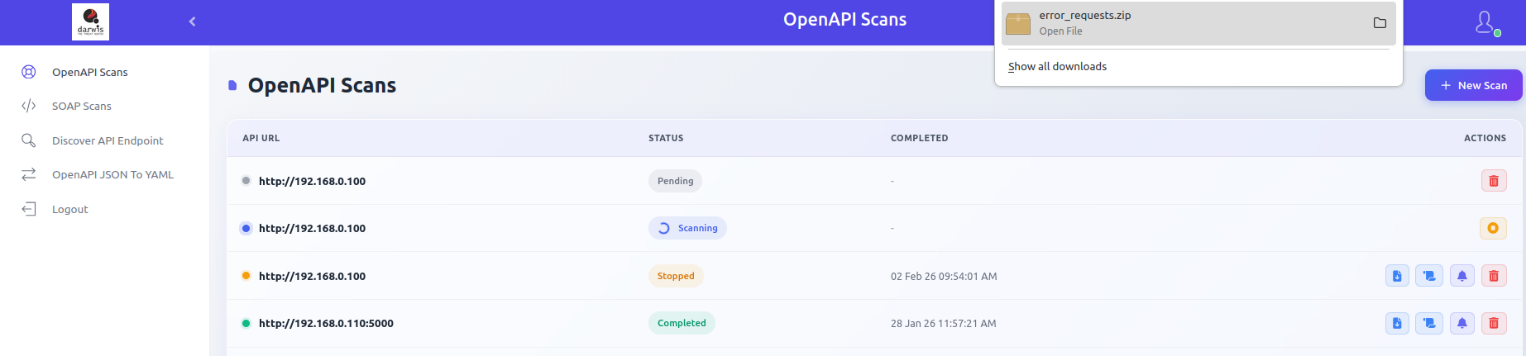
Error Logs
During scanning, the API Scanner fuzzes the target API. If the server returns 5xx errors, the requests and responses are captured in a downloadable file.
Note
Error log downloads are only available when server errors were encountered during the scan.
Scan Results
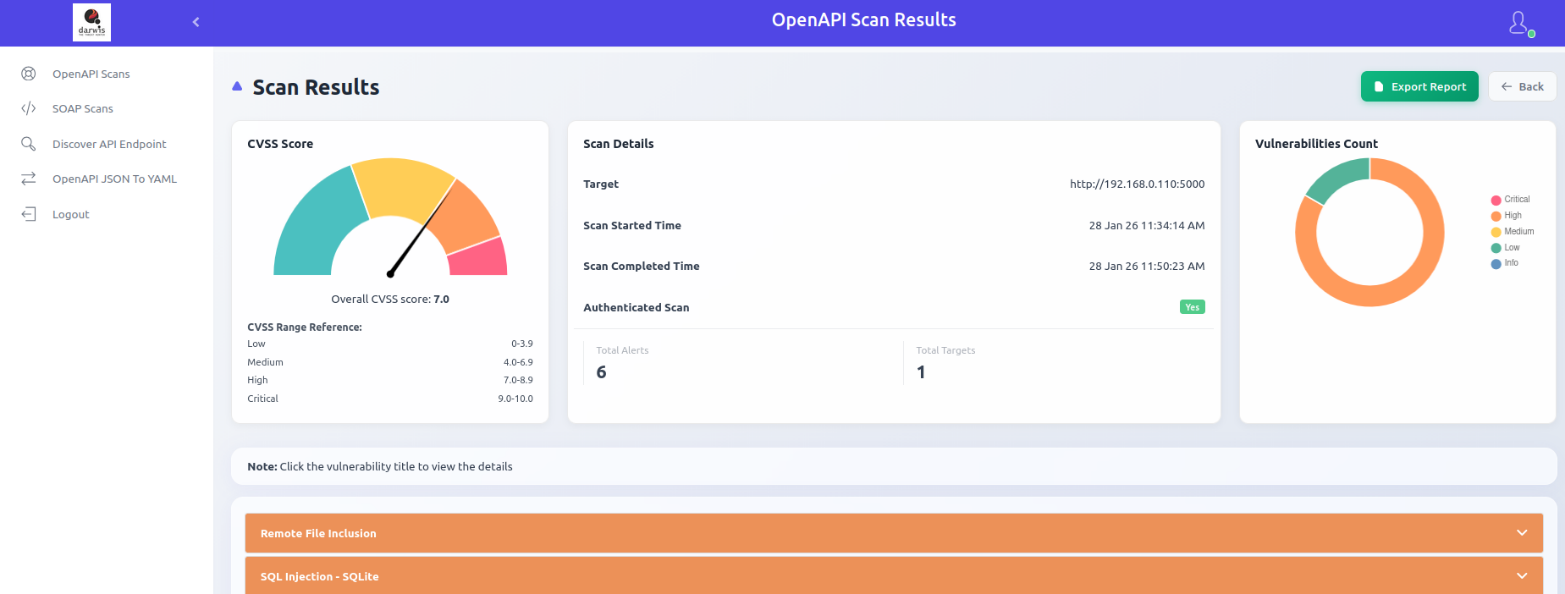
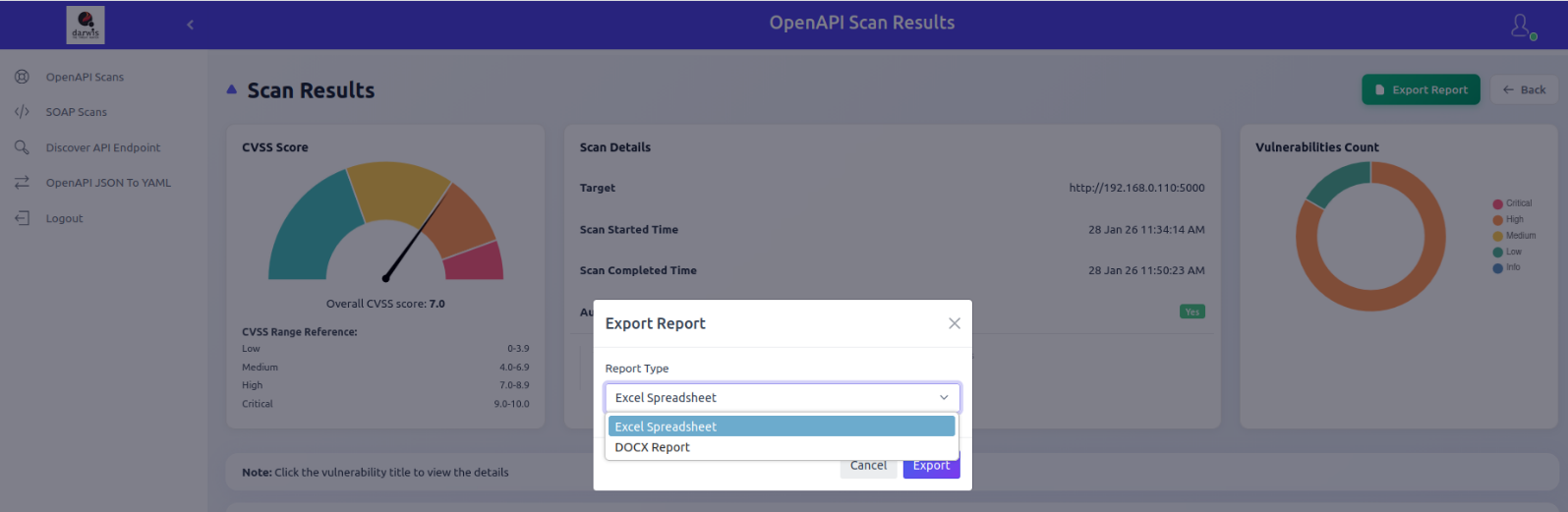
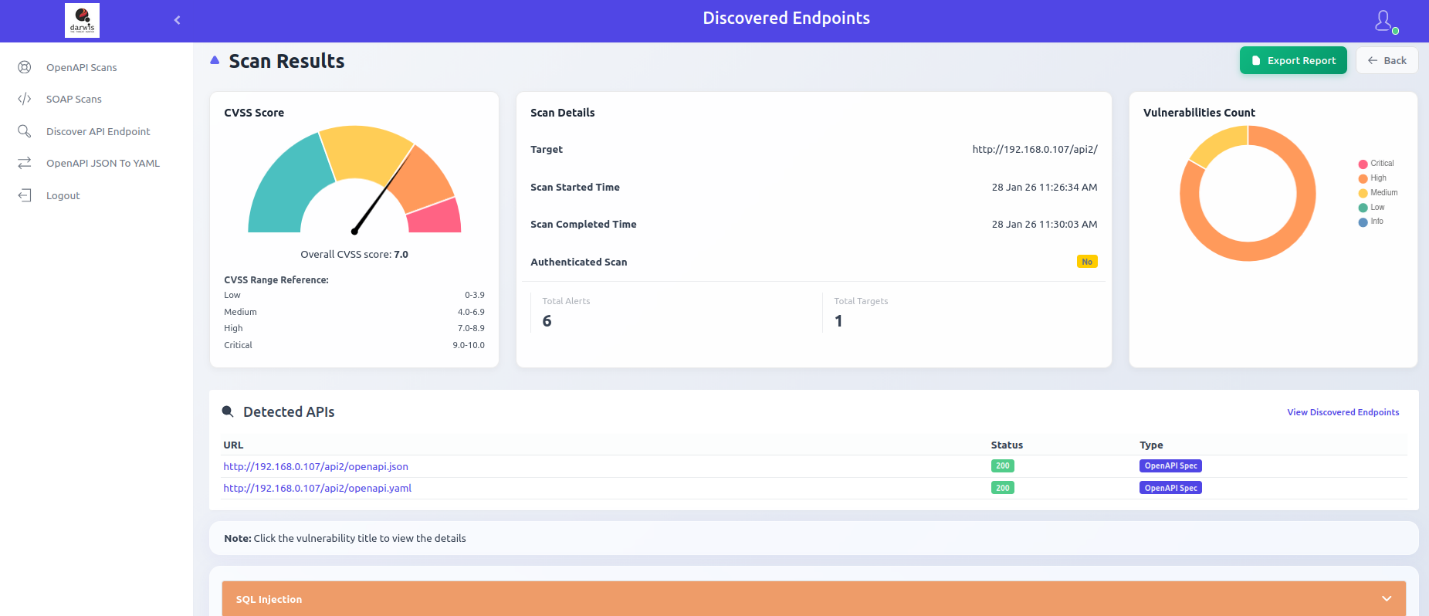
Click View Results to view vulnerability details within the panel. The scan results page shows:
- CVSS score chart
- Scan details
- Vulnerability count by severity: Critical, High, Medium, Low, Info
Exporting Reports
Click Export Report to download scan results. Available formats:
- Excel Spreadsheet
- DOCX Report
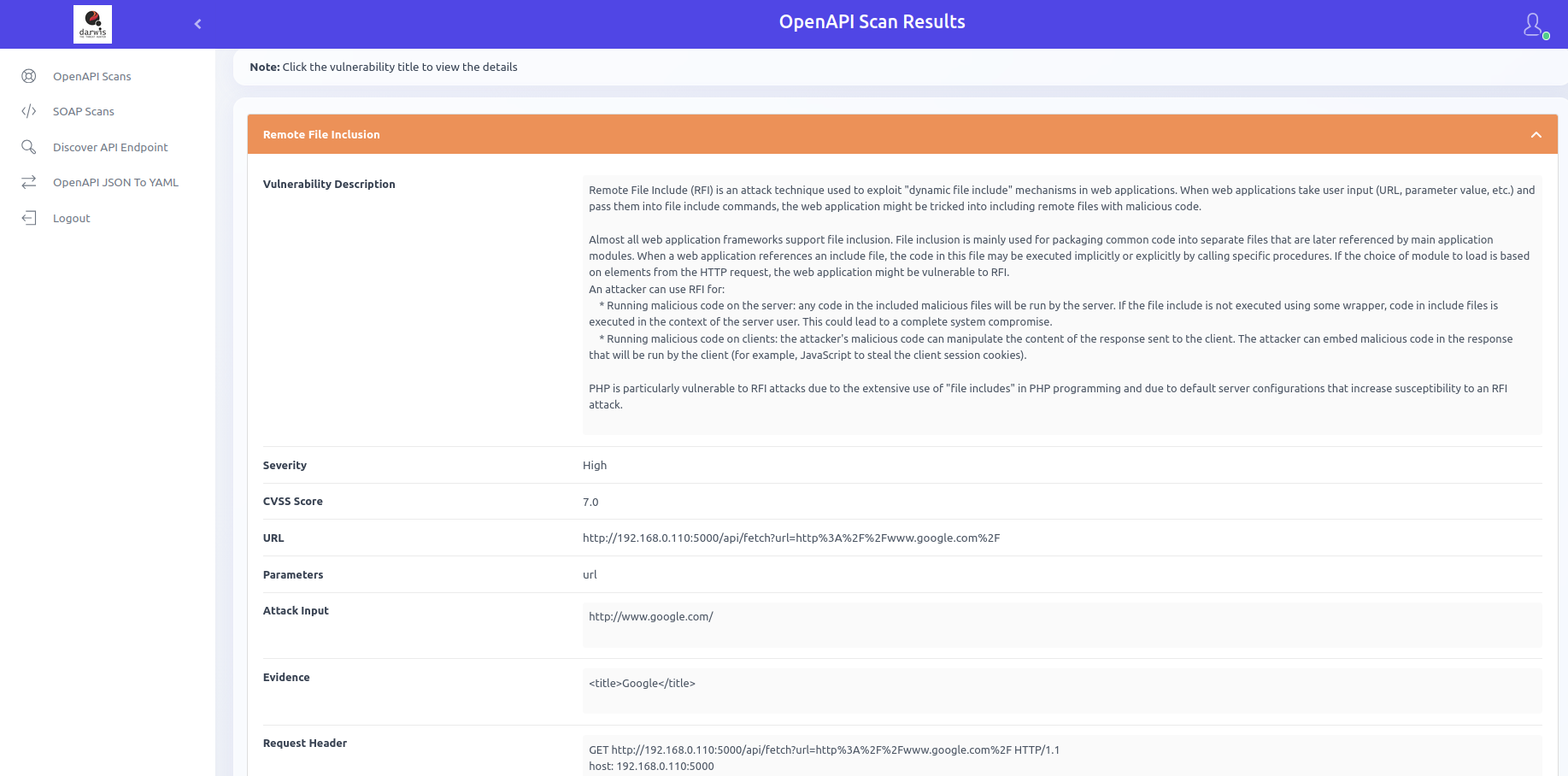
Vulnerability Details
Click a vulnerability title to view its details.
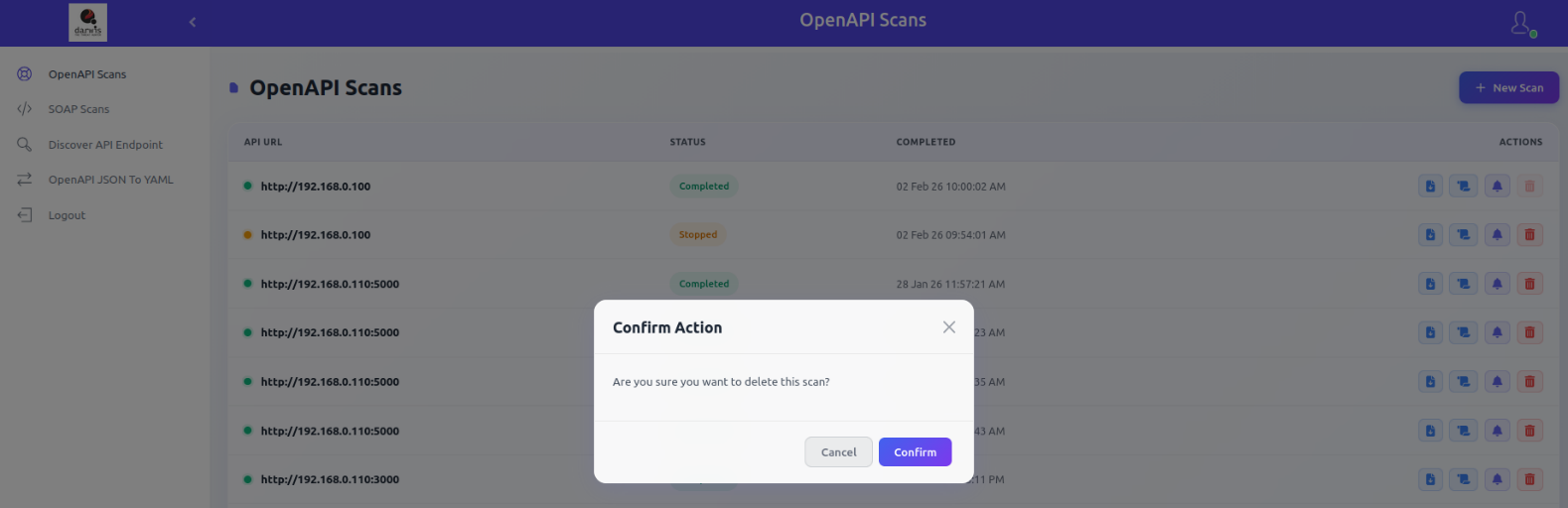
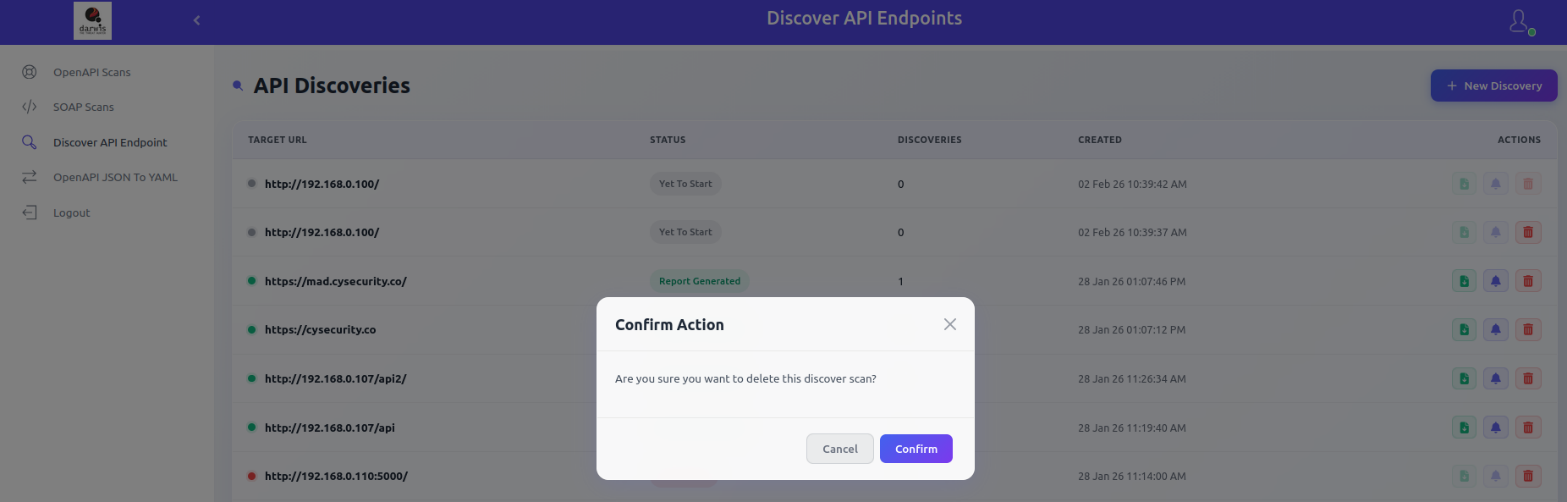
Deleting a Scan
Click the Delete icon and confirm to remove a scan.
SOAP Scan
SOAP Scan analyzes SOAP-based web services for security vulnerabilities. Upload a WSDL or XML file that defines the service, and the scanner automatically discovers and tests all exposed operations for common security issues.
Adding a Scan
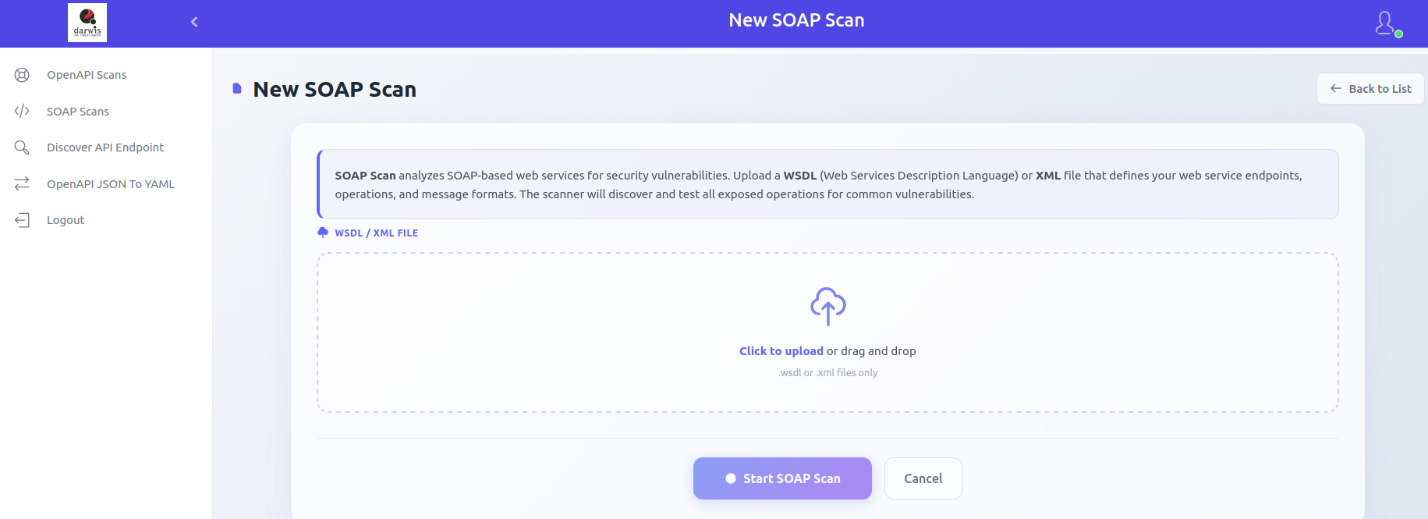
From the sidebar, click SOAP Scans. If no scans exist, click Start First SOAP Scan. Otherwise, click New SOAP Scan in the top-right corner.
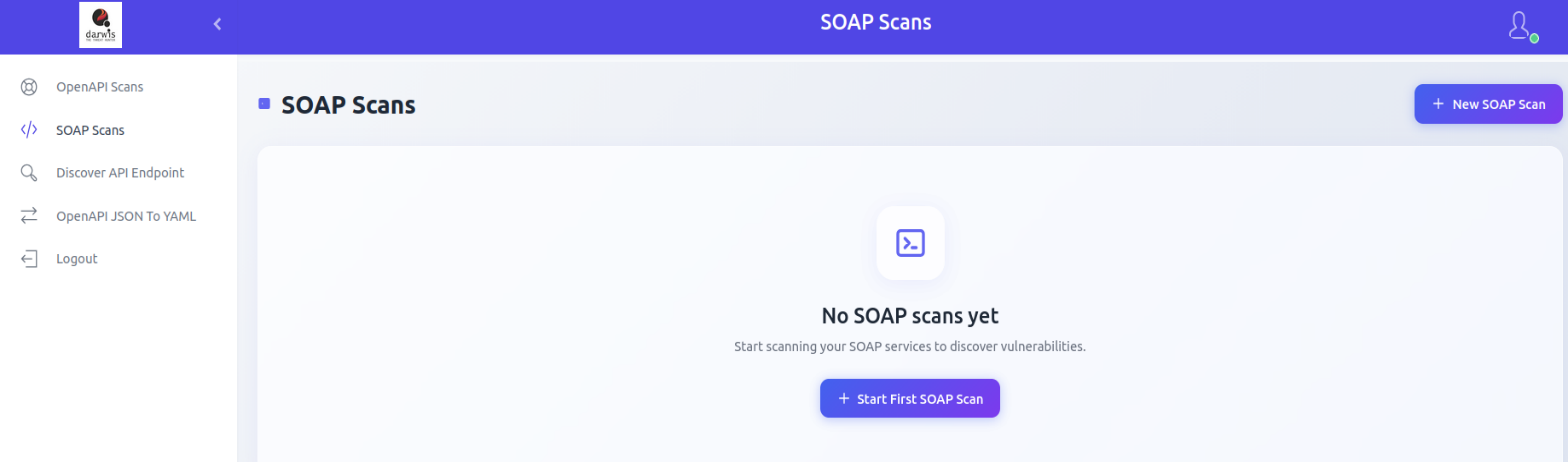
Select a .wsdl or .xml file by clicking Click to upload or by dragging and dropping it. The system parses the file and discovers service endpoints.
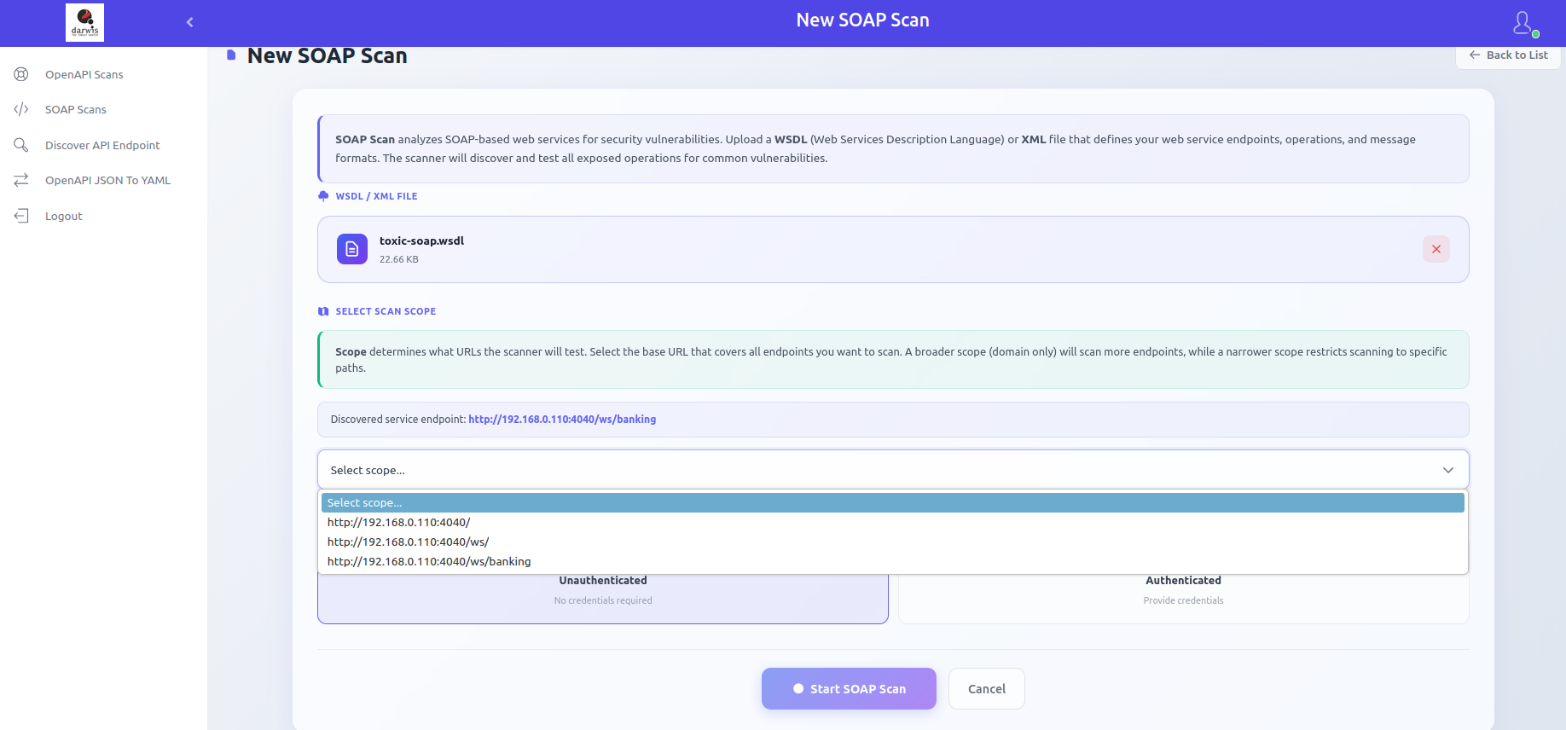
Scan Scope
After upload, review the discovered service endpoints. Select the appropriate scan scope from the dropdown to define which URLs and paths will be tested.
Unauthenticated Scan
Tests SOAP operations without credentials.
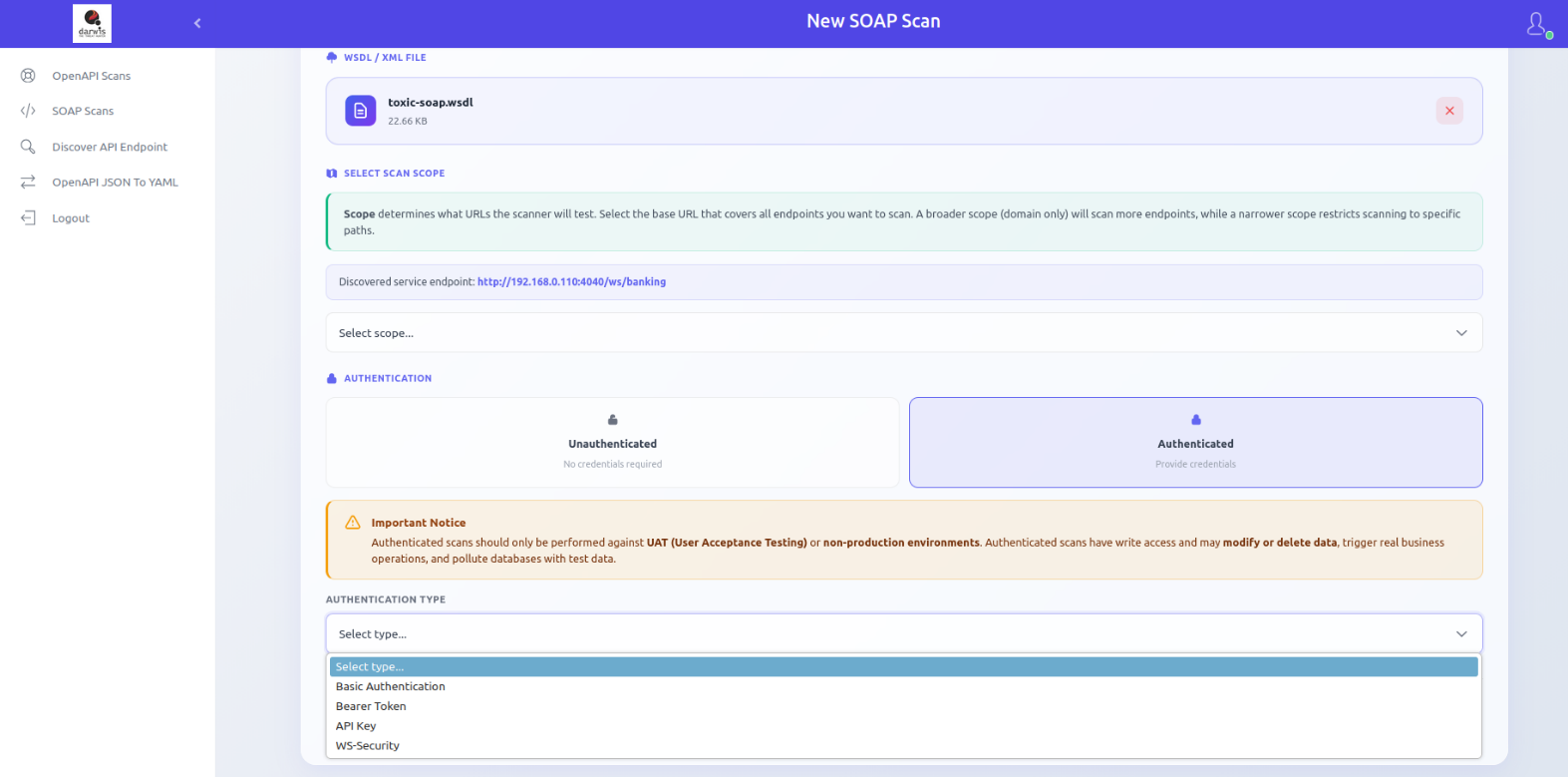
Authenticated Scan
Tests SOAP operations using valid credentials. Supported methods:
- Basic Authentication - Username and password
- Bearer Token - Authorization token
- API Key - Custom API key header
- WS-Security - SOAP-level security credentials
Warning
Only run authenticated scans on UAT or non-production environments. Authenticated scans may have write access and can modify or delete data, trigger real business actions (emails, payments), and pollute databases with test data.
Click Start SOAP Scan to begin. You will be redirected to the scan list.
Viewing Scans
Click SOAP Scans in the sidebar to view all scans.
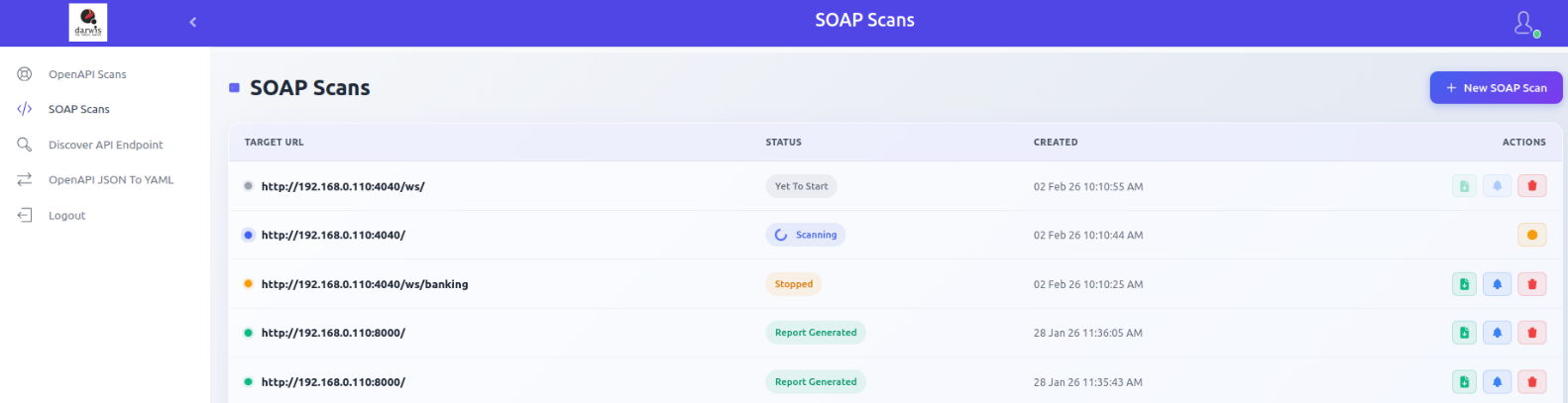
Available actions:
| Action | Description |
|---|---|
| Report | Download scan results in document format |
| View Results | View scan results within the panel |
| Delete | Remove the scan entry |
Scan statuses, reports, scan results, and export options work the same as OpenAPI Scan.
API Discovery
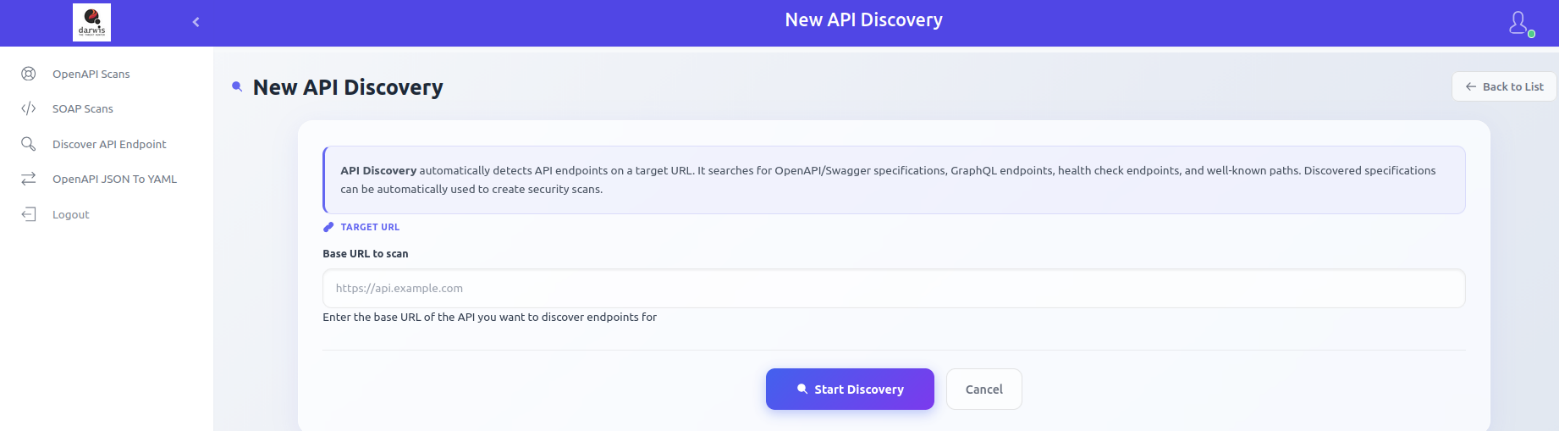
API Discovery scans a target URL to automatically identify available API endpoints. It detects OpenAPI/Swagger definitions, GraphQL endpoints, health check paths, and other commonly used API routes. Discovered API specifications can then be used to run security scans.
Starting a Discovery
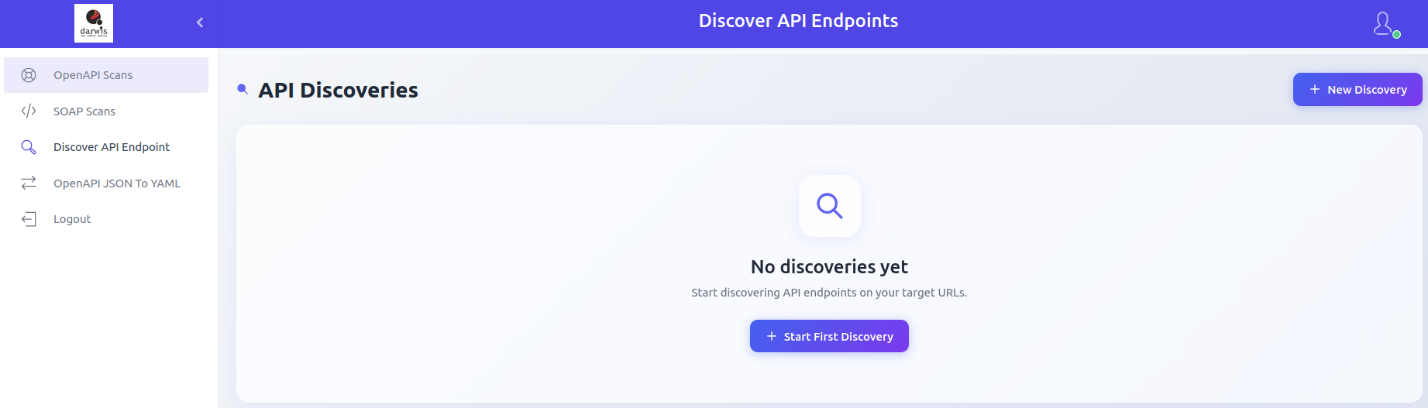
From the sidebar, click Discover API Endpoint. If no discoveries exist, click Start First Discovery. Otherwise, click New Discovery in the top-right corner.
Enter the target URL and click Start Discovery.
Viewing Discoveries
Click Discover API Endpoint in the sidebar to view all discovery runs.
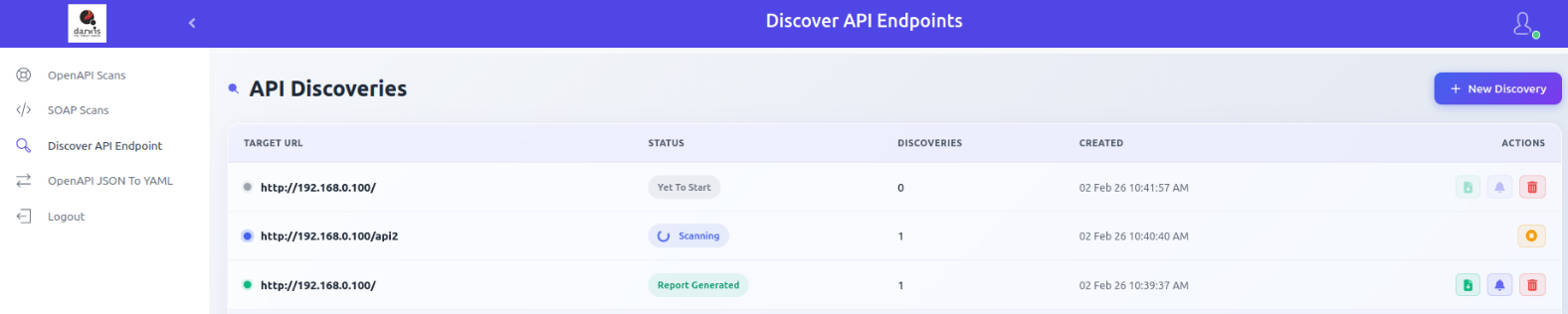
Each row shows:
| Column | Description |
|---|---|
| Target URL | The URL that was scanned for API endpoints |
| Status | In progress, completed, failed, or stopped |
| Discoveries | Number of endpoints discovered |
| Created | Date and time the discovery was created |
| Actions | Report, View Results, Delete |
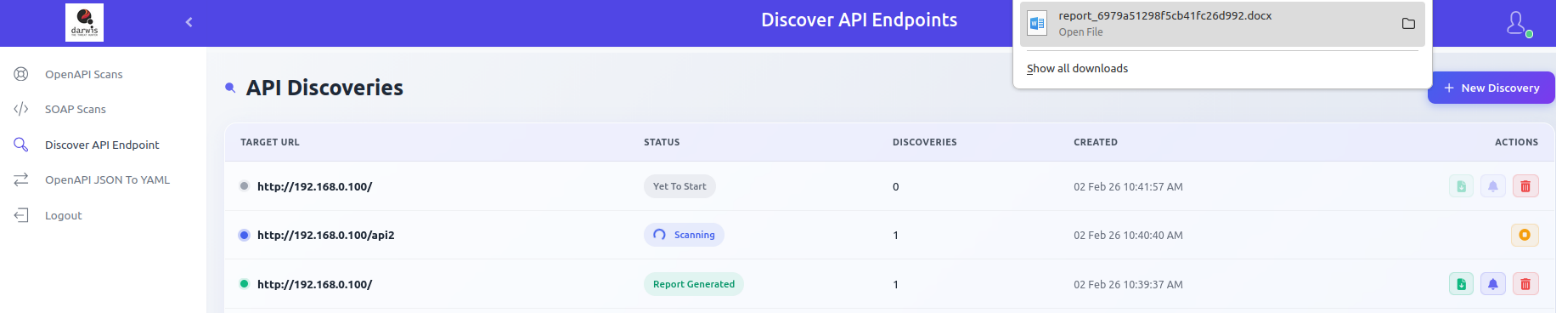
Report
Download discovered endpoints in document format.
Scan Results
Click View Results to view detected APIs, discovered endpoints, and any scan results found at those endpoints.
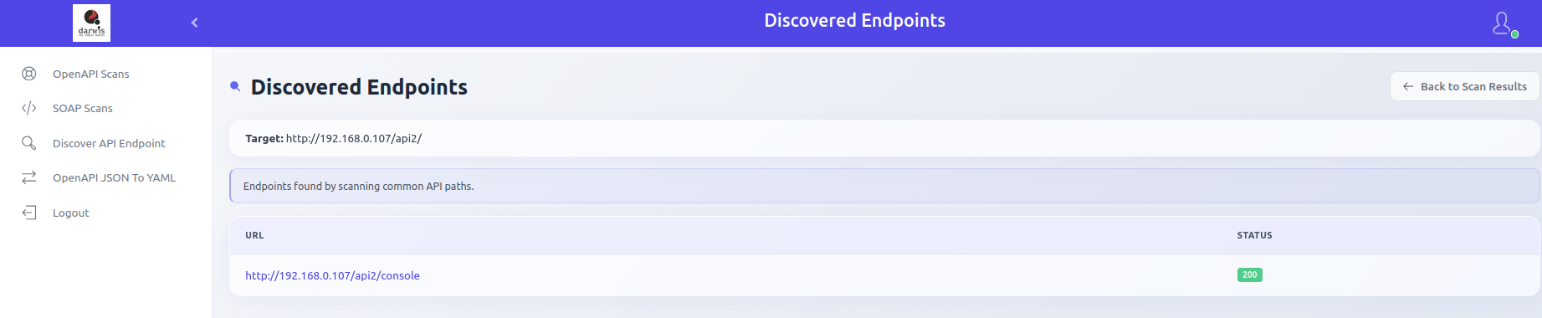
Discovered Endpoints
Click View Discovered Endpoints in the detected APIs section to see all endpoints found by scanning common API paths.
Deleting a Discovery
Click the Delete icon to remove a discovery entry.
OpenAPI JSON to YAML Converter
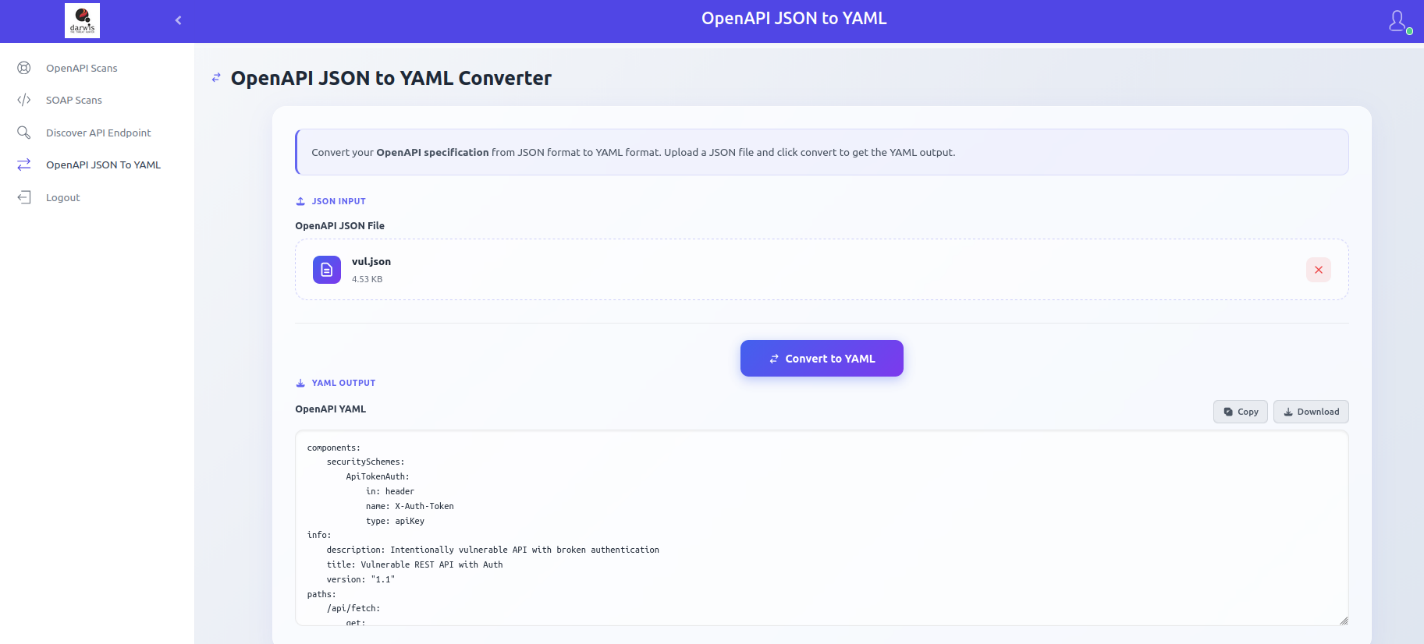
The OpenAPI JSON to YAML Converter transforms OpenAPI specification files from JSON to YAML format.
Usage
From the sidebar, click OpenAPI JSON To YAML.
Select your OpenAPI JSON file by clicking Click to upload or by dragging and dropping it, then click Convert to YAML.
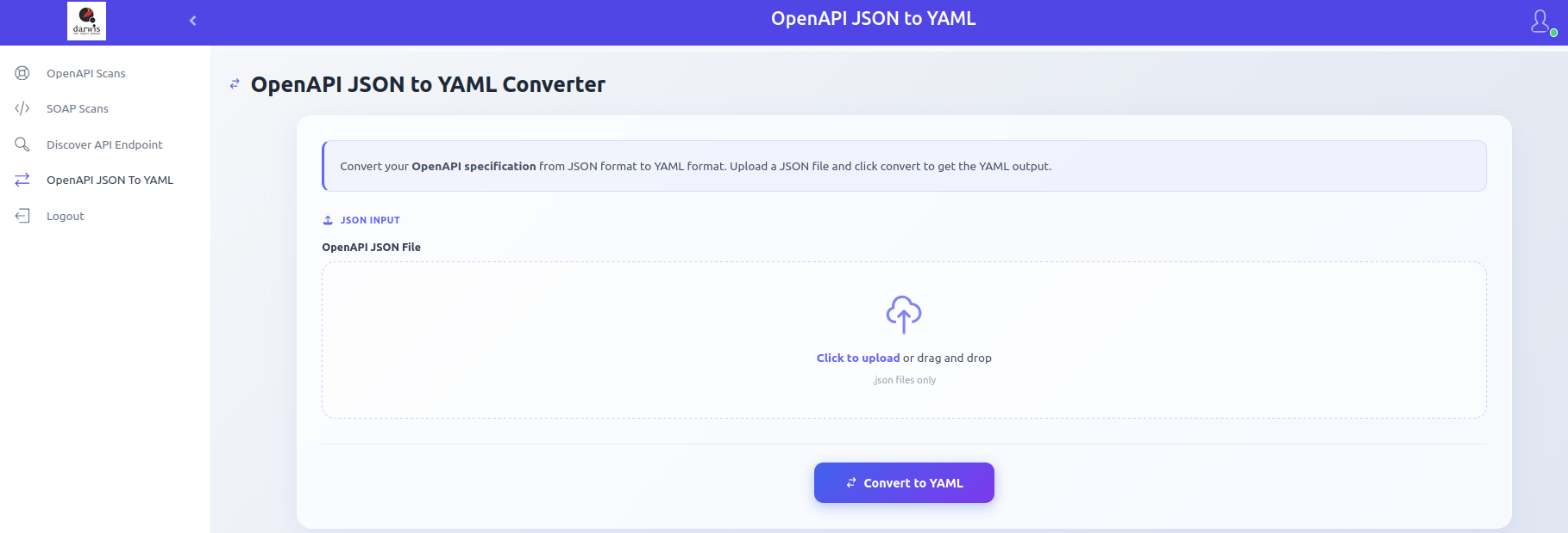
The YAML output is displayed in the panel. You can copy it to your clipboard or download it as a file.